Microsoft 365 Admin Health Check: 15 Things Every Business Should Review
IT Club — Powered by Altitude IT (opens in a new tab)

Keep up with IT Club
Add IT Club as a preferred source in Google Search.
Microsoft 365 is a managed cloud service — but tenant configuration, user management, administrator oversight, data protection and recovery planning remain the organisation's responsibility. This operating-model health check covers 15 areas that frequently reveal gaps between what businesses assume and what their tenant actually shows.
A business has been running Microsoft 365 for several years. The licences renew automatically. Users sign in every morning. Email arrives. Files sync. Teams meetings happen. Management's reasonable assumption: Microsoft handles the platform, so the platform is fine.
That assumption is partly correct. Microsoft does operate and maintain the Microsoft 365 service — its infrastructure, availability, security and feature development. What Microsoft does not manage is each customer's tenant: the users, the configurations, the administrators, the sharing settings, the retention policies, the audit logs and the recovery plan. Those belong to the organisation.
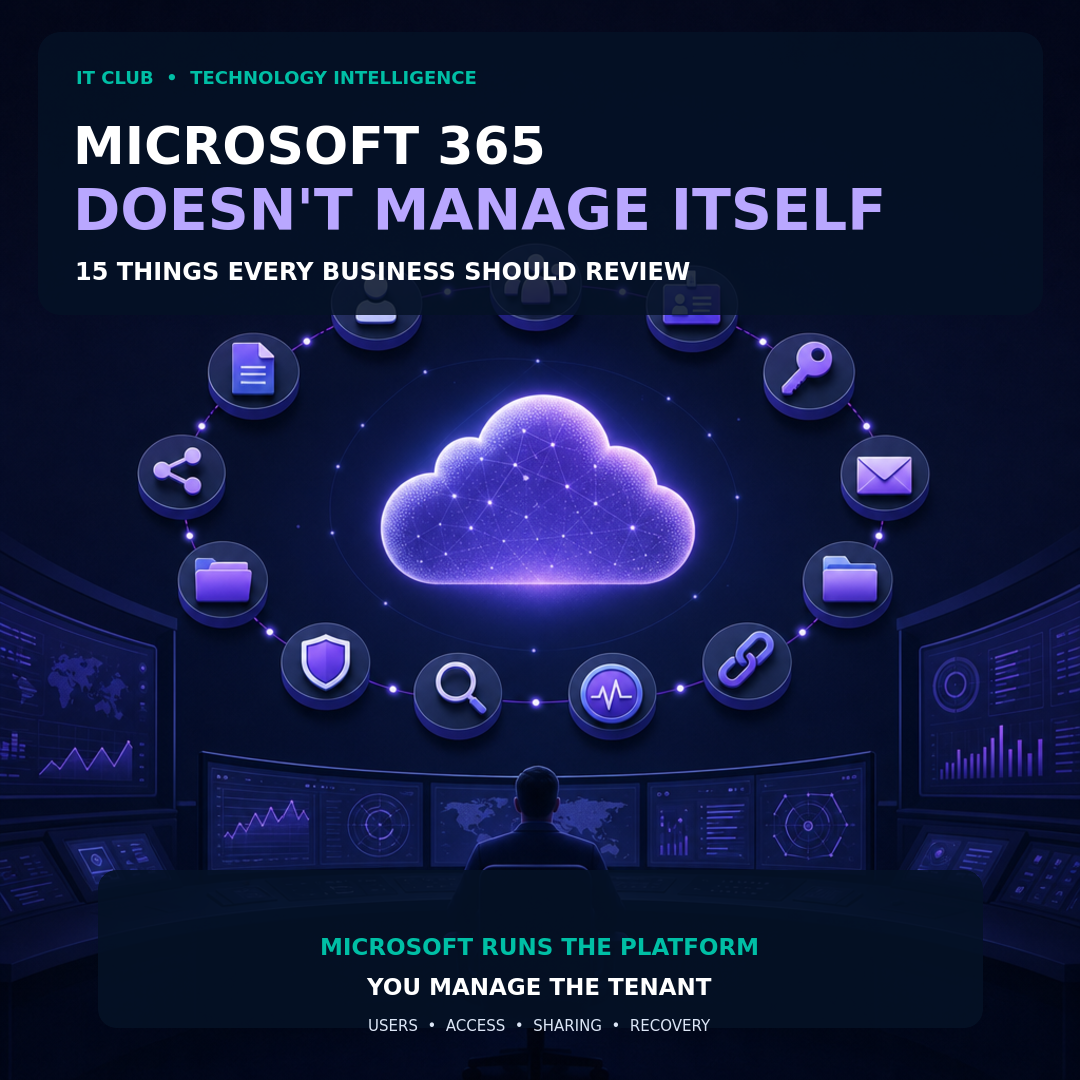
Microsoft operates the platform. Each organisation is responsible for its own tenant.
A health check of a typical SME Microsoft 365 tenant often reveals a gap between the assumption — 'Microsoft manages it' — and the reality: former employees with active accounts, administrators who left the business two years ago, licences assigned to nobody, shared mailboxes no longer in use, SharePoint links without expiry, no documented recovery plan and no idea when audit logs were last reviewed.
None of this requires a Microsoft 365 failure to cause harm. Configuration drift, accumulated access and undocumented decisions create risk quietly, without any service disruption.
The Quick Answer
Microsoft 365 is not self-managing. Each organisation is accountable for 15 areas of tenant health:
- 1Users — who has an account, whether it is still needed and whether access was removed when people left
- 2Licences — what is assigned, what is unused and whether assignments match current roles
- 3Administrators — who holds elevated roles, whether they still need them and whether former suppliers retain access
- 4Authentication — how users prove identity and whether MFA and Conditional Access are in place
- 5Mailboxes — user mailboxes, shared mailboxes, resource accounts and their configuration
- 6Mail flow — routing, connectors, transport rules and email authentication records
- 7SharePoint — sites, permissions, owners and guest access
- 8OneDrive — storage policies, retention and access after a user leaves
- 9External sharing — who outside the organisation can access data and on what terms
- 10Teams and Groups — active teams, orphaned groups, guest membership and meeting policy
- 11Data protection — sensitivity labels, retention policies and data loss prevention
- 12Secure Score — posture guidance and outstanding recommendations
- 13Auditing — whether audit logging is active and whether anyone reviews it
- 14Service health — whether the business knows how to monitor Microsoft 365 availability
- 15Recovery — whether a recovery plan exists and whether it has been tested
A Microsoft 365 tenant can work perfectly while being poorly managed. The goal is not more Microsoft 365 settings. It is knowing that the important settings are intentional.
This is an operating-model and accountability health check — not a security hardening tutorial and not a guide to improving a score. The questions here are about whether the organisation is managing its tenant, not whether a specific configuration value is optimal.
Feature availability and behaviour vary by Microsoft 365 plan. All licensing-dependent capabilities mentioned in this article must be verified against current Microsoft documentation and your own subscription before acting on them.
What Microsoft Manages and What You Manage
Microsoft 365 is a cloud service. Microsoft is responsible for the physical infrastructure, platform availability, service patching, feature delivery and the security of the underlying systems. Microsoft publishes its service-level commitments and provides transparency through the service health dashboard and Trust Center.
Each organisation using Microsoft 365 retains responsibility for its own tenant. That includes: who has user accounts; which administrator roles are assigned and to whom; how the service is configured; what data is stored and how it is protected; how external access is controlled; what audit logging covers; and what happens if data is deleted, corrupted or a user account is compromised.
This is sometimes described as the shared responsibility model. In practice, for many small and medium businesses, the tenant-side responsibility is invisible — decisions made during setup years ago are still in place, nobody reviews them, and the assumption persists that Microsoft handles everything.
Microsoft 365 includes service and workload recovery features — recycle bins, version history, point-in-time restore for SharePoint and OneDrive — but these are not a substitute for an intentional recovery plan that the organisation has tested.
IT Club Health Framework: How to Use This Check
The framework below uses three qualitative states for each review area. This is an IT Club internal framework — it is not a Microsoft standard, not an industry certification and not a formal benchmark. Its purpose is to help organisations identify where tenant management is sound, where it needs attention and where the situation is genuinely unknown.
| State | What it means |
|---|---|
| Green — Known and managed | The organisation can answer the question, the answer is recent and the situation has a named owner who reviews it. |
| Amber — Needs attention | The organisation has some visibility but reviews are infrequent, documentation is out of date or a known gap exists without a remediation plan. |
| Red — Unknown or unmanaged | The organisation cannot answer the question confidently, has not reviewed the area recently or does not know what the current state is. |
Work through each of the 15 areas below and assign a state. Red areas should be treated as priorities. Amber areas should have a named owner and a review date. Green areas should be verified at a frequency appropriate to the rate of change — at minimum quarterly for most organisations.
Do not convert this framework into a numerical score. A numerical score can pass while specific critical gaps remain unresolved. The purpose is to surface specific, named issues — not to produce a percentage.
The 15 Health Check Areas
1 — Users
The user directory is the foundation of Microsoft 365 access. Every account is a potential entry point. An account left active after someone leaves the organisation — or after a contractor's engagement ends — remains a valid credential that can potentially be exploited.
Review questions for this area: Can you produce an accurate list of every active user account? Does each account belong to a current employee, contractor or service identity with a continuing business reason? Is there a documented process for account deactivation when someone leaves, and is it being followed? Are there accounts that have not been signed into for 60 or more days and have no documented explanation?
Microsoft Entra supports revoking active sessions for a user, which can terminate existing authenticated access immediately when an account is compromised or when a leaver's access should be removed. Whether this capability is understood and used appropriately is a question of operational process, not just licensing.
- Review all active accounts in the Microsoft 365 admin centre under Users → Active users
- Filter for accounts with no recent sign-in activity — check Microsoft Entra sign-in logs for last sign-in dates
- Confirm that your joiner and leaver process includes account deactivation and is consistently followed
- Identify any shared or generic accounts (info@, accounts@, admin@) and confirm they are necessary and monitored
2 — Licences
Licence cost is one of the most straightforward areas to review and one of the most frequently overlooked. Licences assigned to accounts that no longer need them represent direct financial waste. Licences that include security or compliance capabilities that have never been configured represent a different kind of waste: paying for protection that does not exist.
Review questions: Do you know how many licences you hold and how many are assigned? Are there licences assigned to accounts that belong to former employees? Are there capabilities included in your current licence tier — data loss prevention, advanced auditing, information protection, Intune — that have never been configured? Have licence assignments been reviewed since the organisation last grew or shrank significantly?
- Review licence assignments via Billing → Licences in the Microsoft 365 admin centre
- Identify unassigned licences and confirm whether the subscription quantity reflects current headcount
- Identify accounts with licences but no recent activity — these may be candidates for licence recovery
- Review which licence tier you hold and confirm which capabilities are included — feature availability varies materially between Microsoft 365 Business Basic, Business Standard, Business Premium and Enterprise plans
3 — Administrators
Global Administrator is the most powerful role in a Microsoft 365 tenant. It can create and delete accounts, reset passwords, remove MFA requirements, change billing, access all mailboxes and export all data. The question is not simply whether Global Administrators are set up — it is whether every current Global Administrator has a documented reason to hold that role today.
A common finding in tenant reviews: IT suppliers who were granted Global Administrator access during an implementation or migration, and whose access was never removed after the project closed. This access remains active, usable and entirely outside the organisation's day-to-day awareness.
Microsoft Entra includes emergency access accounts — sometimes called break-glass accounts — which are designed to prevent tenant lockout if normal administrative access fails. These accounts should exist in every tenant, be documented securely and be tested periodically. Their existence and current status is a meaningful health indicator.
- Review all administrator role assignments in the Microsoft Entra admin centre under Roles and administrators
- For every Global Administrator: confirm who they are, why they hold the role and whether they still work with or for the organisation
- Review whether IT suppliers or partners hold delegated access — check partner relationships and Granular Delegated Admin Privileges (GDAP)
- Confirm that emergency access accounts exist, are documented securely and have been verified recently
- Confirm that administrator accounts are not used as everyday email and browsing accounts
4 — Authentication
Authentication is the first line of defence for every user account in the tenant. The authentication methods policy — managed in the Microsoft Entra admin centre — defines which methods are permitted across the organisation. Reviewing this policy against what users are actually using is an important distinction: having MFA available is not the same as MFA being enforced for all users.
Microsoft has been moving away from SMS and voice call authentication towards phishing-resistant methods including the Microsoft Authenticator app, FIDO2 security keys, Windows Hello for Business and passkeys. The direction of travel is away from weaker methods. Verify current Microsoft guidance on authentication method policy and any retirement timelines before advising users or making changes.
- Review the authentication methods policy in the Microsoft Entra admin centre
- Confirm whether MFA is enforced for all users — not just recommended or registered
- Identify any users still using SMS or voice call MFA and whether migration to stronger methods is planned
- Review Conditional Access policies to understand what conditions govern access to the tenant
- Confirm that administrator accounts use the strongest available authentication method
- Verify whether any legacy authentication protocols remain permitted and whether there is a documented business reason
5 — Mailboxes
A Microsoft 365 tenant typically contains more mailboxes than the organisation expects. There are user mailboxes, shared mailboxes, resource mailboxes (meeting rooms and equipment), distribution groups, mail-enabled security groups and possibly inactive mailboxes retained from former users.
Shared mailboxes in particular accumulate silently. A support@ or accounts@ mailbox created for a former team may still receive email, with no active owner and no monitoring. Resource mailboxes for meeting rooms that no longer exist may still be bookable. Inactive mailboxes retained for compliance reasons should be documented and their retention terms confirmed.
- Review all mailbox types in the Exchange admin centre — user, shared, resource and inactive
- For each shared mailbox, confirm who has access, whether it is still needed and whether it is actively monitored
- Confirm mailbox auditing is enabled — this records actions taken on mailboxes and is important for any subsequent investigation
- Identify any mailboxes with forwarding rules set to external addresses — a common indicator of compromise or a misconfiguration requiring attention
- Review inactive mailboxes and confirm their retention is documented and deliberate
6 — Mail Flow
Mail flow covers how email enters and leaves the organisation's Microsoft 365 tenant. Most organisations have straightforward mail flow — email arrives via Exchange Online and is delivered to user mailboxes. Some have more complex arrangements: connectors to third-party security gateways, hybrid configurations with on-premises Exchange, or custom routing for line-of-business applications.
Email authentication is a distinct but closely related concern. SPF, DKIM and DMARC records tell receiving mail servers whether email claiming to come from your domain is legitimate. A DMARC policy at enforcement prevents domain spoofing — attackers sending email that appears to come from your organisation's domain. Many businesses have SPF in place but no DMARC policy, which leaves domain spoofing possible.
- Review mail flow connectors in the Exchange admin centre and confirm each connector is documented and still required
- Review transport rules — confirm each rule is documented, has a named owner and is still appropriate
- Check SPF, DKIM and DMARC records for each sending domain
- Confirm whether DMARC is at enforcement (p=quarantine or p=reject) or still at monitoring (p=none)
- Review outbound spam filter policies and confirm external forwarding behaviour is appropriate — automatic external forwarding is frequently a misconfiguration risk
For more detail on DMARC, see our articles on what DMARC is and why your business needs DMARC, linked below.
Why Your Business Needs DMARC →
7 — SharePoint
SharePoint is where most Microsoft 365 organisations store team documents, project files, intranet content and shared resources. Over time it accumulates: old project sites, teams from completed work, document libraries with permissions that were never reviewed and guest access that was granted for a specific purpose and never removed.
SharePoint sharing is controlled at two levels: the organisation-wide sharing policy and the individual site or library level. An organisation-wide policy that permits sharing with anyone — unauthenticated, anonymous access — can be overridden at the site level, but only if somebody has made that override deliberately. The default policy and the actual site-level configuration are separate questions.
- Review the organisation-wide SharePoint sharing settings in the SharePoint admin centre
- Identify all active SharePoint sites and confirm each has a current, named owner
- Review sites that have not been actively used in the past 12 months — confirm whether they are still needed
- Review external access to SharePoint sites — identify any sites with active guest users and confirm those relationships are still current
- Confirm whether anonymous sharing links are permitted and whether expiry is enforced
8 — OneDrive
OneDrive for Business provides personal cloud storage for each licensed user. It holds individual working files, locally synced documents and, through Known Folder Move, may contain Desktop, Documents and Pictures from users' Windows devices.
OneDrive includes built-in recovery features: a recycle bin that retains deleted files, version history and the ability to restore an entire OneDrive to a point in time within the configured retention window. These are useful recovery tools, but they operate within defined limits — and those limits vary by plan and configuration. They are not a substitute for an independent backup where one is needed.
- Confirm whether OneDrive Known Folder Move (Desktop, Documents, Pictures backup) is configured for users
- Review what happens to a user's OneDrive when their account is deleted — check your organisation's retention settings and the Microsoft 365 admin centre's policy
- Confirm how long a former user's OneDrive is retained before permanent deletion — this varies by plan and requires explicit configuration review
- Review external sharing permissions for OneDrive — confirm whether users can share files externally and under what conditions
- Confirm whether the organisation's data recovery expectations align with OneDrive's actual built-in restore capabilities
For more detail on recovering deleted OneDrive and SharePoint files, see our dedicated article linked below.
Recover Deleted OneDrive and SharePoint Files →
9 — External Sharing
External sharing is one of the most frequently misunderstood areas of tenant management. The question is not whether external sharing is permitted — for most organisations, some degree of external sharing is a legitimate operational requirement. The question is whether external sharing is controlled: whether the organisation knows who has access, under what terms and for how long.
Sharing links created without expiry remain active indefinitely. A link shared with a client or contractor for a specific project continues to work months or years later, even after the relationship has ended. A guest account invited for a project remains in the directory unless it is explicitly removed.
- Review the number of active guest users in Microsoft Entra — identify how many exist and whether each is still a current relationship
- Review the organisation-wide external sharing policy for SharePoint and OneDrive
- Confirm whether sharing links have expiry enforced — without enforced expiry, links remain valid indefinitely
- Review whether anonymous 'anyone with the link' sharing is permitted and whether that is a deliberate policy decision
- Confirm whether guest access reviews are conducted and at what frequency
10 — Teams and Groups
Every Microsoft Team creates a Microsoft 365 Group, a SharePoint site, a mailbox and a OneDrive-backed document library. Teams created over the course of several years accumulate into a collection of active, inactive, orphaned and forgotten resources — each carrying its own membership, permissions and guest access.
An orphaned team is one where all the assigned owners have left the organisation. Without an active owner, nobody is accountable for membership, guest access, document permissions or whether the team should continue to exist. Microsoft 365 does not automatically clean up orphaned teams.
- Review all active Teams and Microsoft 365 Groups — identify any that have not been active in the past 6 to 12 months
- For each team, confirm that at least two active, current-employee owners are assigned
- Identify orphaned teams — those where all owners have left — and assign new owners or archive the team
- Review guest membership across teams — identify which teams have external guests and confirm each is still a current relationship
- Review meeting policy settings — confirm whether external participants can bypass the lobby, record meetings or access content in ways that are appropriate for the organisation
- Confirm whether Microsoft 365 Group expiry policies are configured and appropriate
11 — Data Protection
Data protection in Microsoft 365 covers retention policies, sensitivity labels and data loss prevention. These capabilities are included in varying degrees depending on the Microsoft 365 plan, and the Microsoft Purview compliance portal is where they are configured. Licensing significantly affects what is available: Microsoft 365 Business Premium and Enterprise plans include substantially different Purview capabilities than Business Basic or Standard.
Retention policies determine how long data is kept and what happens when it reaches the end of its retention period. Without an appropriate retention policy, data deleted by a user may eventually be permanently unavailable after the relevant recovery window ends. With a retention policy in place, data can be preserved for defined periods regardless of user deletion. Confirm the current behaviour and scope for the organisation's own workloads, licence and configuration before relying on either outcome.
- Review the Microsoft Purview compliance portal to confirm which retention policies are in place and what they cover
- Confirm whether your Microsoft 365 plan includes data loss prevention and whether any DLP policies are configured
- If sensitivity labels are in use, confirm they are published to the correct users and that classification guidance exists
- Confirm what retention periods apply to email, SharePoint, OneDrive and Teams content in your tenant — these vary by configuration and plan
- Identify any compliance or legal hold requirements and confirm they are implemented — litigation holds and eDiscovery capabilities vary significantly by licence
Retention behaviour, litigation hold capabilities and eDiscovery features vary materially by Microsoft 365 licence. Do not assume that capabilities seen in Microsoft documentation apply to your specific plan without verifying against your subscription. This article does not constitute legal advice.
12 — Secure Score
Microsoft Secure Score is available at security.microsoft.com/securescore and provides posture guidance — a view of which Microsoft-recommended security actions have and have not been implemented in the tenant. It is a useful signal, not a verdict.
From an operational health perspective, the relevant questions about Secure Score are not primarily about improving the number. They are about whether anyone in the organisation looks at it, whether outstanding recommendations have been reviewed and whether the reasons for any unaddressed recommendations are documented.
- Confirm whether anyone in the organisation reviews Secure Score — and at what frequency
- Review the list of outstanding improvement actions and confirm whether each has been assessed
- For any recommendation marked as 'Risk Accepted', confirm that a named owner documented the decision and that a review date exists
- Note that Secure Score reflects your current licence — recommendations requiring licences you do not hold will appear unavailable
- Do not treat an improving score as evidence that all significant risks are addressed — Secure Score measures Microsoft-recognised control adoption, not every risk facing the business
For a detailed examination of what Secure Score measures and how to use it, see our dedicated article linked below.
Microsoft Secure Score: Is Your Microsoft 365 Environment Actually Secure? →
13 — Auditing
Microsoft Purview Audit records activity across Microsoft 365 services: sign-ins, administrator actions, mailbox access, file operations, permission changes, guest invitations, application consent and many other events. Audit logging is enabled by default in most Microsoft 365 plans, but the retention period — how long audit records are kept — varies significantly by licence and configuration.
An audit log that nobody reads is useful mainly after something has already gone wrong. The health check question here is not simply whether auditing is on — it is whether the organisation reviews it, whether alerts are configured for significant events and whether there is a process for investigating anomalies.
- Confirm that audit logging is active — review the Microsoft Purview compliance portal under Audit
- Confirm the audit retention period that applies to your plan and review whether it meets operational or compliance requirements
- Review whether any audit alerts are configured — for example, for role changes, external forwarding rule creation or mass download events
- Confirm whether anyone reviews audit logs on a scheduled basis and who owns that responsibility
- Review Microsoft Entra sign-in logs for any flagged risky sign-ins or risky users that have not been investigated
Audit retention periods vary by Microsoft 365 licence and configuration. Extended retention can require additional licensing. Verify the current position against Microsoft documentation and your subscription before assuming audit records will be available for any specific period.
14 — Service Health
Microsoft publishes real-time service health information through the Microsoft 365 admin centre. The service health dashboard shows the current status of all Microsoft 365 services — Exchange Online, SharePoint Online, Microsoft Teams, Microsoft Entra and others — including any active incidents, advisories and resolved issues.
Service health is relevant from an operational standpoint for two reasons. First, when users report problems — 'email isn't working', 'Teams keeps dropping' — the service health dashboard is the first place to check before investigating internal infrastructure. Second, the message centre in the same admin centre publishes planned changes and feature updates, which are relevant for change management and user communication.
- Confirm that the IT administrator or support team knows how to access the Microsoft 365 service health dashboard
- Review the message centre for any pending planned changes relevant to the organisation
- Confirm whether service health email notifications are configured to alert the right people when incidents are reported
- Consider whether the organisation's communication process for Microsoft 365 outages is clear — do users know what to do and who to contact if Microsoft 365 is unavailable?
15 — Recovery
Microsoft 365 includes meaningful built-in recovery capabilities. Deleted emails can be recovered from the deleted items folder or the recoverable items folder. Deleted files in SharePoint and OneDrive pass through a recycle bin. Version history allows previous versions of documents to be restored. SharePoint and OneDrive include point-in-time restore capability within the configured retention window.
These capabilities are genuinely useful for everyday recovery scenarios. They are not an independent backup. They operate within retention limits that vary by plan and configuration. They do not protect against every data-loss scenario — particularly ransomware that encrypts files and versions over a sufficient period to exceed the restore window, or administrative errors that permanently delete accounts or sites.
Whether an organisation needs additional, independent backup of Microsoft 365 data — held outside the Microsoft 365 service, by a separate product, with independent credentials — depends on its specific data risk, recovery time requirements, compliance obligations and the operational consequences of data loss. That decision should be made deliberately, not by default.
- Confirm what built-in recovery capabilities are available in your plan and what their current retention limits are
- Confirm whether the organisation has assessed whether built-in recovery is sufficient or whether additional backup is required
- If additional backup is in place, confirm it stores data outside the Microsoft 365 service, uses independent credentials and has been tested
- Review whether there is a documented recovery plan for key scenarios: accidental file deletion, account compromise, ransomware, loss of access to administrator accounts
- Confirm when recovery capabilities were last tested — a backup that has never been tested is an assumption, not a plan
For more detail on recovering deleted files, see our article on recovering deleted OneDrive and SharePoint files, linked below.
Recover Deleted OneDrive and SharePoint Files →
A 15-Minute Owner-Level Management Check
Not every business owner needs to manage Microsoft 365 configuration directly. But every business owner should be able to ask the right questions. The following check takes approximately 15 minutes and does not require technical expertise — it requires asking the person responsible for IT to provide the answers.
15-Minute Owner-Level Microsoft 365 Health Check
Ask your IT administrator or provider to confirm the following. If any question cannot be answered confidently, that is the priority.
- 1Who is the Global Administrator for our Microsoft 365 tenant? Can you name every person or account currently holding that role?
- 2When did we last remove an account that was no longer needed — either a leaver or an IT supplier?
- 3Is MFA enforced for every user, including contractors and part-time staff?
- 4Do we have any sharing links to external people that have no expiry date?
- 5Is DMARC configured for our email domain, with an intentional policy and a named owner?
- 6When did we last review who has access to our SharePoint sites and Teams?
- 7If a member of staff deleted an entire SharePoint document library by mistake today, how quickly could we recover it?
- 8Does our recovery plan assume we can call on Microsoft to restore our data, or do we have an independent process?
- 9Who in the organisation last looked at the Microsoft 365 audit log?
- 10Is anyone monitoring service health, and do users know what to do when Microsoft 365 is unavailable?
These are not trick questions. They are the operating questions that any business running a cloud service should be able to answer. If the answers reveal gaps, that is useful information — it means the gaps can now be addressed.
Red Flags: Prioritise These
Not every finding requires urgent action. Some do. The following situations represent meaningful risk and should be treated as priorities rather than items for a future review cycle.
- Active accounts belonging to former employees — particularly those with access to sensitive SharePoint sites, shared mailboxes or administrator roles
- IT suppliers or former IT providers retaining administrator access to the tenant
- No emergency access accounts — or emergency access accounts whose credentials have not been verified recently
- MFA not enforced for all users — any account without MFA is a realistic attack target
- No documented DMARC configuration or owner — the organisation cannot explain how it protects its domain against spoofing
- External sharing links with no expiry — these remain active indefinitely unless explicitly removed
- Mailboxes with active external forwarding rules that are not documented and monitored
- Audit logging confirmed off, or audit logs not reviewed according to an agreed schedule
- No recovery plan tested — particularly if recovery relies entirely on built-in Microsoft 365 capabilities without independent verification of their limits
- Cannot answer who the current Global Administrators are — this is a fundamental tenant accountability gap
Operational Heartbeat: Ongoing Tenant Management
A Microsoft 365 health check is not a one-time exercise. The tenant changes continuously — users join and leave, licences are assigned and removed, administrators change, sharing settings drift, new features are introduced and configuration decisions made years ago may no longer reflect current requirements.
| Frequency | Activity |
|---|---|
| Monthly | Review joiner and leaver process — confirm all leavers from the past month have had accounts deactivated; review any new administrator role assignments; check Microsoft 365 message centre for planned changes. |
| Quarterly | Review all active guest users and external sharing; review Secure Score and outstanding recommendations; review Teams and Groups for orphaned or inactive resources; confirm mailbox forwarding rules; review sign-in logs for flagged risky users. |
| Every 6 months | Full administrator role review — can every current administrator explain why they hold their role; review SharePoint site ownership; review data protection policies and confirm retention periods are documented; test at least one recovery scenario. |
| Annually | Full user account audit against HR records; licence optimisation review; review all Conditional Access policies; review all transport rules and mail flow connectors; review DMARC alignment; full recovery plan review and test. |
| On change events | Whenever a staff member leaves, a supplier relationship ends, a project closes, a significant licence change occurs or a security incident is reported — review the relevant area immediately rather than waiting for the next scheduled review. |
Administrator Technical Note: Current Read-Only Review Approaches
This note is for Microsoft 365 administrators conducting the health check. All approaches described below are read-only or review-focused. No configuration changes should be made without appropriate testing, change control and stakeholder approval. Nothing here constitutes a deployment instruction.
Microsoft Entra admin centre (entra.microsoft.com)
- Users: review all users, filter by last sign-in date, review account status and licence assignments
- Roles and administrators: review all role assignments including Global Administrator — confirm each named account and its associated person
- Authentication methods: review the authentication methods policy to see which methods are enabled across the tenant
- Emergency access accounts: confirm break-glass accounts exist and review their last sign-in date (they should not have been used for routine work)
- Sign-in logs: review for risky sign-ins and risky users flagged by Entra ID Protection
- External identities: review all guest users and their last sign-in activity
Microsoft 365 admin centre (admin.microsoft.com)
- Users → Active users: full user list with licence status and roles
- Billing → Licences: total licensed quantity, assigned count and unassigned licences
- Health → Service health: current service status and historical incidents
- Health → Message centre: planned changes and feature updates
Exchange admin centre (admin.exchange.microsoft.com)
- Mailboxes: review all mailbox types — user, shared, resource, inactive
- Mail flow → Connectors: review all connectors and confirm each is documented
- Mail flow → Rules: review all transport rules and confirm each has a documented owner and purpose
- Reports: review mail flow reports for anomalies
SharePoint admin centre (admin.sharepoint.com)
- Policies → Sharing: review the organisation-wide sharing settings for SharePoint and OneDrive
- Sites → Active sites: review all sites, their owners, last activity and external sharing status
Microsoft Purview compliance portal (compliance.microsoft.com)
- Audit: confirm audit logging is active and review current retention period
- Data lifecycle management: review retention policies and labels
- Data loss prevention: review any DLP policies and their current status
Microsoft Defender portal (security.microsoft.com)
- Secure Score: review current score, outstanding recommendations and any risk-accepted items
- Incidents and alerts: review any active or recent incidents
This health check is a review activity. It generates findings and priorities. Remediation decisions — removing accounts, changing sharing settings, adding MFA requirements, modifying Conditional Access — should be made with appropriate testing and sign-off, not applied directly during the review.
Frequently Asked Questions
Does Microsoft back up our data?
Microsoft operates the platform and maintains its infrastructure. Microsoft 365 includes built-in recovery capabilities — recycle bins, version history and point-in-time restore for SharePoint and OneDrive. These are genuinely useful tools for day-to-day recovery. Their scope and retention limits vary by workload, plan and configuration, and may not meet every recovery objective. Businesses should assess their own requirements and make a deliberate decision about whether additional, independent backup is needed.
How many Global Administrators should a tenant have?
There is no universally correct number. The aim is to have enough named, protected administrators to avoid a lockout while keeping the role tightly controlled. Every Global Administrator should be a named individual or documented emergency account with a current reason for holding the role. If the organisation cannot explain each assignment, it should review the role design rather than treat Global Administrator as the default IT support account.
What is an emergency access account?
Emergency access accounts — sometimes called break-glass accounts — are Microsoft Entra administrator accounts held for use in recovery scenarios where normal administrative access is unavailable. For example, if Conditional Access policies or MFA settings are misconfigured and lock out all active administrators, emergency access accounts provide a route to recover the tenant. They are typically excluded from Conditional Access policies, hold Global Administrator access and should be documented and stored securely offline. Their credentials should be verified periodically without being used for routine work. Every tenant should have at least two.
Is MFA required by law?
MFA is not universally required by law for all UK businesses in general terms, though specific regulatory frameworks — financial services, healthcare, public sector — may have requirements that effectively mandate strong authentication. Cyber Essentials, a UK government-backed security scheme, requires MFA for all cloud services. Regardless of legal requirement, MFA significantly reduces the risk of account compromise and is the baseline expectation for any business holding client data. This article does not constitute legal or regulatory advice — verify your specific obligations with appropriate professional advisors.
Can I see who has accessed our SharePoint files?
SharePoint file access events are recorded in the Microsoft Purview audit log, provided auditing is enabled. The level of detail and the retention period for those records depends on your Microsoft 365 plan. Audit log search is available through the Microsoft Purview compliance portal and allows you to search for specific users, files, sites or event types. The ability to search audit logs is subject to role-based access control — not all users can run audit searches.
How long does Microsoft keep audit logs?
Audit retention periods vary by Microsoft 365 licence and configuration. Extended retention can require additional licensing — verify the current position for your specific subscription against Microsoft's current documentation at learn.microsoft.com. Microsoft has changed audit retention terms and available licence tiers over time, so verify rather than assume.
What happens to a user's data when they leave?
When a user account is deleted in Microsoft 365, their mailbox is retained as an inactive mailbox for a period depending on your plan and configuration. Their OneDrive is retained for a period that can be configured in the SharePoint admin centre. SharePoint sites they owned are not automatically deleted — they should have at least one other owner. The key issue is that default retention periods may not match the organisation's requirements, and they should be explicitly reviewed and configured rather than relied upon without verification.
What is DMARC and why does it matter?
DMARC — Domain-based Message Authentication, Reporting and Conformance — is an email authentication record that tells receiving mail servers what to do when they receive email that claims to come from your domain but fails SPF or DKIM checks. A DMARC policy at enforcement (p=quarantine or p=reject) prevents attackers from successfully sending email that impersonates your domain. Many businesses have an SPF record but no DMARC policy, leaving domain spoofing possible. See the DMARC articles linked in this article for more detail.
Should we use SMS MFA or are there better options?
SMS-based MFA is better than no MFA, but it is the weakest of the commonly available options. It is vulnerable to SIM-swapping, phone number porting attacks and interception. Microsoft has been moving away from SMS MFA towards the Microsoft Authenticator app, FIDO2 security keys, Windows Hello for Business and passkeys. Phishing-resistant methods — FIDO2 keys, passkeys, Windows Hello — are significantly stronger because they cannot be intercepted in a phishing attack. Verify current Microsoft guidance on authentication methods and any retirement timelines before advising users, as this area continues to evolve.
We have Microsoft 365 Business Premium — does that mean we are secure?
Microsoft 365 Business Premium includes a comprehensive range of security capabilities: Microsoft Entra ID P1, Intune, Defender for Business, Defender for Office 365 Plan 1, advanced authentication controls and more. Licensing those capabilities is not the same as implementing them. A Business Premium tenant with none of the security features configured provides significantly less protection than one where they have been deliberately set up. The health check in this article helps identify which capabilities exist but are not yet in use.
How often should we review guest users?
Guest users should be reviewed at minimum quarterly. Organisations with high volumes of external collaboration may benefit from monthly reviews or from automated access review policies in Microsoft Entra, which can be configured to require guest users to confirm their continued need for access on a scheduled basis. Access reviews that require a human decision are more effective than passive monitoring, because they require the guest's internal sponsor to actively confirm continued access rather than relying on inactivity thresholds.
What is Conditional Access and do we need it?
Conditional Access is a Microsoft Entra feature that allows organisations to define the conditions under which access to Microsoft 365 is permitted. It can require MFA, require a compliant device, restrict access by location or sign-in risk, block access to specific applications from unmanaged devices and enforce authentication strengths. Availability depends on licensing and configuration, so confirm current entitlement before planning a policy. The health-check question is whether the organisation has deliberately decided how access should be protected — and can explain the current arrangement.
What should we do if we discover a former IT supplier still has admin access?
Treat it as an urgent access-review finding. Confirm which roles and delegated relationships remain, identify any business dependency or handover need, then follow the organisation's approved access-removal and credential-rotation process. Review relevant audit evidence, document the decision and confirm that no unmanaged supplier connection remains. Where a relationship is through Microsoft Partner delegation, verify the current Microsoft removal process before acting.
Can Microsoft restore our tenant if we are hit by ransomware?
Microsoft 365 includes built-in recovery features that may help in a ransomware scenario, including version history and SharePoint or OneDrive recovery options where available. Their usefulness depends on the nature of the incident, how quickly it is detected, the applicable recovery window and the tenant's configuration. The business should document which scenarios those features cover, test them and decide deliberately whether a separate recovery arrangement is needed for its own risk and recovery objectives.
What is the difference between this article and the Microsoft 365 security baseline checklist?
The security baseline checklist covers seven specific security controls and how to configure them — authentication, administrator privilege, external sharing, device security, audit logging, security baseline documentation and risk monitoring. That article is primarily about what settings to configure and how. This health check is about operating-model accountability: whether the organisation is actively managing its tenant across all 15 areas of ongoing responsibility, not just whether specific configurations are in place. Both are complementary; this article assumes the reader is asking 'are we managing this?' rather than 'what settings should we use?'
Does Secure Score tell us whether we are managing our tenant well?
Secure Score measures adoption of Microsoft-recommended security controls. A high score suggests many recommended controls are in place — it does not indicate whether users, licences, administrators, mailboxes, recovery plans or operational processes are being managed appropriately. A tenant can achieve a strong Secure Score and still have unreviewed guest users, orphaned teams, no recovery plan, uninvestigated risky sign-ins and unmonitored shared mailboxes. Secure Score and this operating-model health check address different questions.
How do we know if someone is accessing our tenant without authorisation?
Microsoft Entra sign-in logs record all authentication events. Risky sign-ins — unusual locations, impossible travel, token anomalies — are flagged in the Entra admin centre under Protection → Risky sign-ins. Risky users are flagged under Protection → Risky users. These signals require someone to review them. Alerts can be configured to notify the appropriate person when a high-risk sign-in occurs. Without review, these signals are present but invisible.
What happens if nobody acts as the Microsoft 365 administrator?
Without an active, knowledgeable administrator reviewing the tenant, configuration drift accelerates and problems are discovered only after they cause harm. User accounts accumulate, guest access is never reviewed, sharing settings remain at whatever defaults were in place years ago, audit logs go unreviewed and recovery plans are never tested. Somebody in every organisation should own ongoing Microsoft 365 tenant management — whether an internal IT administrator, an IT provider with formal responsibility, or a combination of both with clear boundaries.
We are changing our IT provider — what should we check about our tenant?
Tenant control and administrator access are the primary concerns during an IT provider change. Confirm which accounts your current provider holds, what roles they have been assigned and whether they have delegated access through the Microsoft Partner relationship. Establish full administrator access through accounts you control before removing the outgoing provider's access. Review what configuration was in place when they took over and what has changed during their management. See our dedicated article on changing Microsoft 365 provider and tenant control, linked below.
How do we know if our Microsoft 365 domain is being spoofed?
DMARC reporting provides visibility of email sent claiming to come from your domain. When a DMARC record is in place — even at p=none — DMARC aggregate reports are sent to the configured reporting address, showing which servers are sending email purporting to come from your domain. Reviewing these reports identifies both legitimate sending sources that need to be added to SPF and DKIM, and illegitimate sending that may represent spoofing. Without a DMARC record, no visibility of this activity is available.
What is the IT Club health framework based on?
The green, amber, red qualitative framework used in this article is an internal IT Club framework — not a Microsoft standard, not an industry certification and not associated with any formal benchmark. Its purpose is practical: to help businesses identify where their tenant management is sound, where it needs attention and where the situation is genuinely unknown. No score, certification or compliance claim should be derived from it.
Do features mentioned in this article apply to all Microsoft 365 plans?
No. Feature availability varies significantly across Microsoft 365 plans. Capabilities such as Conditional Access, Microsoft Entra ID Protection, Privileged Identity Management, advanced auditing, data loss prevention, sensitivity labels, Defender for Business and Intune device management are included in some plans and not others, or are available in more limited form in lower tiers. Before acting on any capability mentioned in this article, verify whether your current Microsoft 365 plan includes it. Microsoft's product comparison pages and your licensing agreement are the authoritative sources.
Related Articles
The following IT Club articles are referenced in this health check or provide relevant further reading:
Microsoft 365 Security Checklist: 7 Controls Every Business Should Review →
Microsoft Secure Score: Is Your Microsoft 365 Environment Actually Secure? →
Microsoft SMS and Voice MFA Retirement: What Changes in 2027 →
Changing Microsoft 365 Provider: Tenant Control and Administrator Access →
Why Your Business Needs DMARC →
Recover Deleted OneDrive and SharePoint Files →
Microsoft 365 Security Baseline Guide →
Ask the Advisor
If you are unsure about the current state of your Microsoft 365 tenant — or if the health check above revealed gaps you are not sure how to address — IT Club advisors can help.
We can review your tenant configuration, identify priority gaps, explain what the findings mean in plain language and help you plan next steps. There is no obligation and no sales pitch.
Plain-English Takeaway
Microsoft operates the Microsoft 365 platform. Every organisation using it remains responsible for its own tenant: who has access, what configuration decisions have been made, whether those decisions are still correct and whether recovery is possible if something goes wrong. A structured review across users, licences, administrators, authentication, mailboxes, mail flow, SharePoint, OneDrive, external sharing, Teams and Groups, data protection, Secure Score, auditing, service health and recovery is not a one-off project — it is the ongoing cost of accountability in a cloud-managed service.
Tap to follow The IT Club Channel on WhatsApp.
Related Articles
Microsoft OneDrive Storage Changes: What Should Businesses Check?
Microsoft’s announced pooled-storage changes name Family, Premium and Pro subscriptions. Businesses should identify their actual plan before assuming their tenant is affected.
Read articleYou know someone emailed you the document. You just can't remember who.
Stop opening messages one at a time. Outlook can narrow your mailbox to messages containing attachments, but the steps differ between Classic Outlook and New Outlook.
Read articleStop Treating Your Inbox Like a To-Do List
Flagging an email reminds you that work exists. Putting the work in your calendar reserves time to actually do it.
Read articleNeed help putting this into practice?
IT Club helps you understand the technology. If you need implementation, support or consultancy, the teams behind IT Club can help.
Altitude IT (opens in a new tab) — IT support, cyber security, Microsoft 365 and technology operations.
Altitude AI (opens in a new tab) — AI discovery, automation, governance and implementation.