Microsoft 365 Security Checklist: 7 Controls Every Business Should Review
IT Club — Powered by Altitude IT (opens in a new tab)

Keep up with IT Club
Add IT Club as a preferred source in Google Search.
A practical Microsoft 365 security checklist based on current CIS guidance and Microsoft security controls, helping businesses identify configuration gaps without blindly applying a generic benchmark.
The bottom line
Microsoft 365 Business Premium gives a business useful security capabilities, but a licence is not a configured security baseline. Prioritise identity, administrator access, external sharing, device compliance, audit logging and ongoing monitoring, then document what is enabled and why.
- Review the seven baseline areas before buying another security product.
- Remove stale privileged access and require stronger authentication for administrators.
- Test changes against real users and workflows rather than applying a benchmark blindly.
Why this matters
Cloud security usually drifts through small exceptions: a supplier account that remains privileged, an old sharing link, an unmanaged device or an alert nobody owns. A written baseline makes those decisions visible and gives the business something to review over time.
What you should do
- 1Assign an owner and review date for each baseline area.
- 2Use Microsoft Secure Score and the CIS benchmark as evidence sources, not as proof that the tenant is safe.
- 3Record exceptions, test restrictive changes with affected users and review the baseline after major licensing or business changes.
A business has been running Microsoft 365 Business Premium for several years. It has MFA, Defender, Intune, SharePoint and Teams. Management has a reasonable assumption: "We have Microsoft security."
A security review finds something different. Several users still authenticate with methods weaker than the Authenticator app. Two former IT suppliers retain privileged roles in the tenant. Global Administrator accounts are used for routine email and web browsing. Guest accounts have not been reviewed for over a year. SharePoint sharing links have no expiry and can remain active indefinitely. Unmanaged personal devices access company data. Security alerts exist but have no assigned owner. Nobody in the business knows the current Secure Score. No documented Microsoft 365 security baseline exists.
Nothing was technically broken. The environment had simply drifted — one exception, one legacy access, one unreviewed setting at a time.
This is not unusual. Microsoft 365 security failures are often configuration failures rather than missing-product failures.
Microsoft 365 is not insecure by default, but it is not securely configured for every business by default either. Default settings are designed to allow users to work. Security configuration requires deliberate decisions about who can access what, from where, on which device, with what authentication, subject to what monitoring.
The Quick Answer
Every Microsoft 365 tenant should have a documented security baseline covering at least seven areas:
- 1Authentication — how users prove who they are
- 2Administrator privilege — who has elevated access and why
- 3External sharing — what can leave the organisation
- 4Device security — which devices can access company data
- 5Audit logging — what activity is recorded and reviewed
- 6Security configuration — documented baseline across identity, email, sharing and devices
- 7Risk monitoring — ongoing visibility of threats and configuration drift
A useful baseline can draw from: CIS Microsoft 365 Foundations Benchmark; Microsoft Secure Score; Microsoft security recommendations; organisational risk requirements; and current cyber-security standards such as Cyber Essentials.
A baseline is a starting point for security decisions — not a button that should be pressed across every tenant without testing.
Controls need to account for licensing, user requirements, legacy systems, accessibility, business processes, application compatibility and operational risk. No benchmark is a substitute for understanding the specific environment.
What Is the CIS Microsoft 365 Foundations Benchmark?
The Center for Internet Security publishes community-developed security configuration benchmarks for a wide range of technology platforms. The CIS Microsoft 365 Foundations Benchmark provides recommended security configurations across Microsoft 365 services, developed by a community of security professionals and reviewed independently of Microsoft.
As of August 2026, the current version is CIS Microsoft 365 Foundations Benchmark v7.0.0, which was released in June 2026. This version included significant updates: 22 new recommendations, 12 recommendations moved from the Microsoft Azure Foundations Benchmark, and 68 recommendation updates. The benchmark's scope and control mappings were also revised. Verify the current version at cisecurity.org before acting on specific version details.
The benchmark organises recommendations into two implementation levels:
- Level 1 — Recommendations intended to improve security with minimal operational impact. These are typically appropriate as a starting point for most organisations and represent widely applicable security controls.
- Level 2 — More restrictive recommendations, typically more appropriate for higher-security environments or organisations with specific compliance requirements. Implementing Level 2 controls without careful testing can affect usability and business processes.
CIS gives you a benchmark. Your organisation still has to decide which controls are proportionate.
The CIS benchmark is not a legal requirement. It is not certification. It is not a checklist that guarantees security if applied in full. It is a structured, community-maintained reference that can help identify gaps and guide prioritisation. Many organisations use it as a starting point rather than a rigid specification.
CIS Benchmark and Microsoft Secure Score Are Not the Same Thing
Businesses often discover both CIS and Secure Score when reviewing Microsoft 365 security. They overlap — but they measure different things and serve different purposes.
| CIS M365 Benchmark | Microsoft Secure Score | |
|---|---|---|
| What it is | Independent community benchmark | Microsoft security posture measurement |
| Who publishes it | Center for Internet Security | Microsoft |
| What it measures | Configuration against prescriptive recommendations | Adoption of Microsoft-recommended security actions |
| How it works | Review tenant against published controls | Automated assessment of tenant configuration |
| Where to access it | cisecurity.org (requires free registration) | security.microsoft.com/securescore |
| What high means | Strong alignment with CIS recommendations | Many Microsoft-recommended controls enabled |
| What it cannot confirm | That the organisation cannot be breached | That the organisation cannot be breached |
A tenant may achieve a relatively high Secure Score and still differ meaningfully from a CIS baseline. A tenant may align strongly with CIS and not receive maximum Secure Score. The two tools are complementary, not interchangeable.
Secure Score tells you how Microsoft assesses your security posture. CIS tells you how an independent benchmark recommends configuring the platform. Neither score nor benchmark proves the organisation cannot be breached.
Seven Controls Every Microsoft 365 Tenant Should Review
These seven controls cover the most significant sources of Microsoft 365 configuration risk for most businesses. They are not exhaustive. Security decisions beyond these areas — application consent, data classification, information barriers, advanced threat hunting — may be appropriate depending on size, sector and risk.
1 — Strong Authentication
Identity is the primary control surface in Microsoft 365. Every email account, every SharePoint site, every Teams conversation, every administrative action is protected by — or exposed through — the authentication layer. This is where most Microsoft 365 compromises begin.
Microsoft Entra ID manages authentication for Microsoft 365. MFA is the minimum baseline: requiring a second factor (the Authenticator app, a FIDO2 security key, Windows Hello for Business or a passkey) dramatically reduces the risk of account compromise even if a password is stolen or guessed.
MFA should be the minimum conversation, not the end of the identity-security conversation.
Microsoft has been migrating away from SMS and voice call MFA for several years. SMS-based verification is vulnerable to SIM-swapping, phone number porting and SS7 attacks. Microsoft announced in 2025 a phased retirement of Microsoft-managed SMS and voice MFA authentication, with passkeys and the Authenticator app as preferred replacements. Verify current Microsoft guidance on MFA retirement timelines at learn.microsoft.com before advising users.
Beyond basic MFA, Conditional Access policies allow organisations to define the conditions under which users can access resources. Possible controls include: requiring MFA; requiring a compliant or managed device; restricting access by sign-in risk level; restricting access by user risk level; requiring phishing-resistant authentication for administrator accounts; and applying different controls depending on application sensitivity.
Phishing-resistant authentication — FIDO2 security keys, Windows Hello for Business and passkeys — eliminates credential phishing entirely for enrolled users. Microsoft Entra now supports passkeys as a sign-in method, and passkeys are becoming the default MFA choice for new Microsoft accounts. This is the direction the industry is heading.
Administrators require stronger authentication than standard users. An account that can create new users, reset passwords, remove MFA requirements or modify Conditional Access policies should use the strongest available authentication method. Consider requiring phishing-resistant authentication for all privileged roles.
Every tenant should maintain at least two emergency access (break-glass) accounts: federated accounts that bypass normal Conditional Access, held securely offline, to allow recovery if MFA or Conditional Access fails. These accounts must be documented, stored securely and verified periodically without being used for routine work.
Legacy authentication protocols — SMTP AUTH where not required, IMAP, POP3, older Office clients — do not support modern MFA and should be blocked where technically feasible. Conditional Access policies can block legacy authentication across the tenant.
2 — Reduce Administrator Privilege
Global Administrator is the most powerful role in a Microsoft 365 tenant. It can create accounts, reset passwords, bypass MFA, modify Conditional Access, access all mailboxes, change billing and export all data. It should not be the everyday account used for reading email or browsing the web.
An administrator account should have the smallest amount of authority required for the shortest practical period.
Start with a simple question: Can you name every Global Administrator in your tenant and explain why they still need that role?
Common problems include: too many permanent Global Administrators; IT suppliers who were granted privileged access during a project and were never removed; shared administrator accounts where individual actions cannot be attributed; administrator accounts used for everyday email and web browsing; and standing access to powerful roles when time-limited access would suffice.
Microsoft Entra provides role-based access control with many specific administrator roles — Exchange Administrator, SharePoint Administrator, User Administrator, Conditional Access Administrator — allowing appropriate access without requiring Global Administrator. Where the specific permissions are known, use the least-privileged role.
Privileged Identity Management (PIM) is available with Microsoft Entra ID P2 licensing (included in Microsoft 365 Business Premium and Enterprise E3/E5 plans). PIM allows organisations to assign privileged roles on an eligible rather than permanent basis: an administrator activates the role when needed, for a defined period, with optional justification and approval. This eliminates standing privilege from the most sensitive roles.
Administrator accounts should generally use separate identities from everyday user accounts. An administrator who uses the same Microsoft 365 account for email, Teams and web browsing as for tenant administration increases the impact of any compromise significantly. A separate privileged identity used only for administrative tasks reduces this exposure.
External access should also be reviewed. IT suppliers may have been granted delegated administration through Granular Delegated Admin Privileges (GDAP) or older partner delegation. Review which suppliers have access to which roles, whether that access is still required, and whether it is appropriately scoped.
3 — Control External Sharing
Microsoft 365 makes it straightforward to share files, folders, SharePoint sites and Teams channels with people outside the organisation. External sharing is often essential: suppliers, clients, contractors, professional advisors and project collaborators all have legitimate reasons to access company documents.
External sharing is not inherently insecure. Uncontrolled external sharing is.
A useful question: How many external users currently have access to your Microsoft 365 data?
For many organisations, the answer is unknown. Guest accounts accumulate: former contractors, project collaborators from years ago, client contacts who left their companies. Links created for a specific purpose remain active indefinitely. Anyone with the link — or anyone who forwards it — can continue to access the document.
The key controls to review include: who can create sharing links (all users, or only specific groups); what the default link type is (specific people, organisation-wide or anyone); whether anonymous links are permitted and under what conditions; whether sharing links have expiry dates; how guest accounts are authenticated; and how often guest access is formally reviewed.
Sensitivity labels (available with appropriate Microsoft Purview licensing) can apply access controls to documents that travel with the content: a document labelled Confidential can be configured to prevent sharing with external parties regardless of SharePoint or OneDrive settings. This is useful where document sensitivity varies significantly across the organisation.
Blanket advice — restrict all external sharing to approved domains — is not appropriate for every organisation. Some businesses collaborate legitimately with dozens of different external organisations. Security design should consider the actual risk profile and operational requirements rather than applying the most restrictive available setting across the board.
4 — Control Device Access
Authentication protects the identity. Device controls help protect the endpoint. A valid password and MFA challenge do not automatically make the device trustworthy.
An unmanaged personal device may run an outdated operating system, lack endpoint protection, have no disk encryption, be shared with family members, or be used on uncontrolled networks. Microsoft 365 data accessed on that device may be cached locally, synced to personal storage or exposed by other applications on the same device.
Microsoft Intune (included in Microsoft 365 Business Premium) allows organisations to define device compliance policies: requirements for operating system version, encryption, endpoint protection, screen lock, firewall status and other controls. Conditional Access can then enforce that only compliant devices can access sensitive resources.
Organisations have several choices for unmanaged devices: block access entirely; allow limited browser-only access; apply app protection policies that protect the Microsoft 365 data on the device without managing the device itself; or require full device enrolment. The appropriate choice depends on the business model, risk tolerance and licensing.
A common gap: an organisation licences Intune but never completes device enrolment. The capability exists; the controls do not. Licensing a product is not the same as implementing the security control.
Mobile devices require specific attention. Many organisations address Windows PC security carefully but leave mobile device policy undefined. iOS and Android devices accessing company email, SharePoint and Teams should be covered by either device management or app protection policies.
Microsoft Defender for Endpoint (available with Business Premium) provides endpoint detection and response capability and integrates with Intune compliance. Defender antivirus, firewall and exploit protection should be active on enrolled Windows devices. Defender status can be reported as part of device compliance.
5 — Log What Happens
Microsoft 365 generates extensive audit and security telemetry. Sign-in events, administrator actions, mailbox activity, file access, permission changes, guest invitations, Conditional Access outcomes, application consent, role changes — all of this is recorded. The challenge is not merely: Is logging enabled? It is: Is anybody looking at it?
A log nobody reviews is useful mainly after something has already gone wrong.
Microsoft Purview Audit provides the core audit capability for Microsoft 365 activity. As of current Microsoft 365 plans, audit logging is enabled by default for most services. What varies is retention: standard audit log retention is 90 days for most plans; Microsoft 365 E5 or the Audit (Premium) add-on extends this to one year, with additional retention available. Verify current retention periods against current Microsoft documentation, as these have changed over time.
Microsoft Entra sign-in logs record all authentication events, including MFA outcomes, Conditional Access decisions and risk assessments. These logs show failed sign-in attempts, unusual locations, risky sign-ins and administrator account activity. Entra P1 and P2 licensing (included in Business Premium) provides access to sign-in logs and risk reporting.
Key events to monitor include: role changes (who gained or lost administrator access); application consent grants (which third-party applications were granted access to the tenant); mass download events; sign-in failures; Conditional Access blocks; mailbox forwarding rule creation; and transport rule changes.
Logging alone is not sufficient. Organisations should define what constitutes a suspicious event, configure alerts for high-risk activities, assign ownership of security alerts and establish a response process. Alerts that fire into an unmonitored inbox are not effective.
The Microsoft Defender portal (security.microsoft.com) aggregates security information across Microsoft 365 services: incidents, alerts, Secure Score, threat policies, email security and endpoint protection. For most small and medium organisations, this is the primary place to monitor security events.
6 — Define a Security Baseline
Without a baseline, every Microsoft 365 tenant gradually becomes whatever years of individual changes have turned it into. Password policies get modified. Conditional Access rules accumulate exceptions. Sharing settings are relaxed for a project and never restored. Legacy protocols remain enabled because nobody is sure what uses them.
A security baseline documents the agreed configuration across the major areas of Microsoft 365. It defines WHAT GOOD LOOKS LIKE for this specific tenant — then allows the organisation to compare the current state against it repeatedly.
A useful baseline should cover at least the following areas:
| Area | Example controls to document |
|---|---|
| Identity | MFA method requirements, Conditional Access policies, authentication strengths, break-glass account location and status |
| Privileged access | Who holds each privileged role, why, whether PIM is used, review frequency |
| Exchange Online | Anti-phishing policy, anti-spam settings, external forwarding restrictions, mailbox auditing, DKIM and DMARC status |
| SharePoint / OneDrive | Default sharing level, anonymous link policy, expiry settings, guest access policy |
| Teams | External access policy, guest access policy, meeting settings, application permissions |
| Devices | Compliance policy requirements, BitLocker status, Defender policy, supported OS versions, update requirements |
| Data | Sensitivity label policy, DLP rules, retention policy, information protection configuration |
| Security operations | Alert owners, Secure Score review frequency, incident response process, logging retention |
The baseline does not need to be a complex document. A clear record of what each key setting should be, why that decision was made, and when it was last reviewed is more valuable than an elaborate document that nobody maintains.
Exceptions should also be documented. If a legacy application requires basic authentication, document it: what the application is, what the risk is, what compensating controls exist, who approved the exception and when it should be reviewed. Undocumented exceptions become invisible technical debt.
7 — Monitor Risk and Configuration Drift
Security configuration is not static. The secure configuration created last year is not automatically the configuration in place today.
Drift occurs continuously. Users join and leave — and departure processes do not always remove all access. Administrators change. Suppliers gain access for projects and are not removed when projects close. Conditional Access policies accumulate exclusions added to resolve an incident. Microsoft introduces new features that require opt-in or create new default states. Licences change. Guests are invited by individual users without central visibility. Devices leave management. Settings are temporarily relaxed and never restored.
The secure configuration you created last year is not automatically the configuration you have today.
Microsoft Entra ID Protection provides risk-based signals at sign-in: risky sign-ins (unusual location, impossible travel, token anomaly) and risky users (credentials found in leaked datasets, suspicious activity pattern). These signals can be reviewed in the Entra portal and can also trigger Conditional Access responses automatically.
Regular monitoring should cover: Secure Score changes and newly available improvement actions; risky sign-in events; users flagged as risky; administrator role changes; new application consent grants; guest account additions; new Conditional Access policy changes or exclusions; device compliance status; and supplier access.
Configuration drift monitoring — comparing current settings against a documented baseline at defined intervals — is the most reliable way to catch unintended changes before they become security incidents. Some organisations use Microsoft Entra's Identity Security Posture Management capabilities or third-party tools to automate parts of this comparison.
Microsoft Secure Score: What It Is and How to Use It
Microsoft Secure Score is available at security.microsoft.com/securescore and shows a numerical representation of how many Microsoft-recommended security actions the tenant has implemented. It covers Identity, Devices, Apps and Data — though the recommendations visible depend on which Microsoft products are licensed and active.
Secure Score can help organisations: see current security posture at a glance; identify specific improvement actions with implementation guidance; track progress over time; compare against similar organisations (using the benchmark feature); and prioritise which controls to implement first.
Secure Score is a prioritisation tool, not a video-game score.
Microsoft itself states that security needs to be balanced with usability and that not every recommendation is suitable for every environment. Chasing 100% can harm productivity, block legitimate business processes, lock out users or create new risks through poorly tested configurations.
A more useful approach for each recommendation is to document one of four positions:
| Position | Meaning |
|---|---|
| Implement | The control is appropriate and will be applied |
| Accept risk | The risk is understood and accepted for documented reasons |
| Not applicable | The recommendation does not apply to this tenant's configuration or use case |
| Defer | The control is appropriate but implementation is delayed, with a review date |
This approach produces a Secure Score that reflects genuine decisions rather than a score inflated by enabling controls that were not fully understood or tested.
The IT Club Microsoft 365 Security Baseline — 7 Checks
To make the seven controls easier to remember and apply, IT Club names them as a practical sequence:
| # | Check | Verb | Meaning |
|---|---|---|---|
| 1 | AUTHENTICATE | Prove identity strongly | MFA is enforced, phishing-resistant where appropriate, passkeys considered |
| 2 | LIMIT | Reduce privilege | Administrator roles reviewed, least privilege applied, standing access minimised |
| 3 | CONTROL | Manage external access | Sharing policies reviewed, guest accounts managed, links expire |
| 4 | TRUST | Control device access | Device compliance defined, unmanaged device access explicitly decided |
| 5 | RECORD | Maintain audit evidence | Logging verified, retention understood, critical events alert someone |
| 6 | STANDARDISE | Define secure configuration | Baseline documented across identity, email, sharing and devices |
| 7 | REVIEW | Monitor risk and drift | Secure Score reviewed, risky activity actioned, configuration compared against baseline |
AUTHENTICATE → LIMIT → CONTROL → TRUST → RECORD → STANDARDISE → REVIEW
These seven checks are an IT Club explanatory framework. They are not a CIS certification, a Microsoft programme or a Cyber Essentials standard. They are designed to give business owners and IT teams a practical way to structure a Microsoft 365 security review.
Microsoft 365 Security Maturity — Five Levels
Organisations sit at different points in their Microsoft 365 security journey. This five-level model is an IT Club explanatory framework — it is not a CIS classification, a Microsoft certification, a Cyber Essentials maturity model or an ISO standard.
| Level | Name | Description |
|---|---|---|
| 0 | Unknown | Nobody knows whether the key security controls exist. No baseline. No review. Often true of tenants that have grown organically without a security review. |
| 1 | Basic | Core MFA and standard Microsoft protections are in place. The tenant is using the defaults with some deliberate choices. No formal baseline documented. |
| 2 | Managed | A documented baseline exists. Conditional Access policies, device compliance and audit logging are deliberately configured. Administrator access is reviewed. Guest accounts have a review process. |
| 3 | Monitored | Secure Score is reviewed regularly. Risky sign-ins and risky users are actioned. Privileged access is reviewed. Configuration drift is identified through periodic comparison against the baseline. |
| 4 | Continuous | Configuration is automatically assessed against an agreed baseline. Drift triggers remediation actions. Alerts are owned and reviewed. Security posture is part of regular operational governance. |
Most small and medium businesses operating Microsoft 365 Business Premium have the licensing to reach Level 3 or Level 4. Reaching those levels requires deliberate effort: documenting a baseline, establishing a review cadence and assigning ownership of security monitoring. The licences alone are not sufficient.
Microsoft 365, CIS and Cyber Essentials — What Each One Covers
Cyber Essentials is a UK government-backed certification scheme that helps organisations demonstrate basic cyber hygiene across five technical areas: firewalls, secure configuration, user access control, malware protection and patch management.
Microsoft 365 configuration can support Cyber Essentials evidence across several of these areas: MFA supports user access control requirements; device compliance and Intune policies support secure configuration and patch management; Defender supports malware protection; and Conditional Access can support aspects of access control.
CIS, Secure Score and Cyber Essentials answer different questions. They can support each other, but they are not interchangeable.
CIS compliance does not equal Cyber Essentials certification. A tenant that fully aligns with the CIS Microsoft 365 Foundations Benchmark may still need to address areas outside Microsoft 365 — network firewalls, boundary controls, on-premises systems — to meet Cyber Essentials requirements. Cyber Essentials is assessed by a certifying body, not self-reported against a benchmark.
Microsoft Secure Score does not equal Cyber Essentials certification. A high Secure Score reflects Microsoft-recommended control adoption; it does not confirm that every Cyber Essentials control area has been addressed across the whole technology environment.
For more detail on what Cyber Essentials covers and how Microsoft 365 relates to cloud service scoping, see our article on What Is a Cloud Service Under Cyber Essentials.
Microsoft 365 Security Review — Practical Checklist
Use this checklist as a structured starting point for a Microsoft 365 security review. Not all items will be relevant to every organisation. Where a control is not applicable, document why rather than simply skipping it.
Identity
- MFA is enforced appropriately across user and administrator accounts
- Authentication methods have been reviewed and weak methods phased out where possible
- Administrator authentication uses stronger methods where appropriate (phishing-resistant MFA or passkeys)
- Legacy authentication protocols are blocked where technically feasible
- Emergency (break-glass) access accounts are documented and stored securely
- Temporary Access Pass is available for users who lose MFA access
Privileged Access
- Global Administrator accounts are reviewed and the number minimised
- Daily user accounts and administrator identities are separated where appropriate
- Standing privilege is minimised — PIM or equivalent is used where licensed and proportionate
- Former IT suppliers no longer retain unnecessary privileged roles
- External delegated administration is reviewed and appropriately scoped
- Emergency access is documented separately from routine administrator access
External Sharing
- SharePoint external sharing level is reviewed and intentionally set
- OneDrive external sharing level is reviewed and intentionally set
- Teams guest access is reviewed and intentionally configured
- Guest accounts are periodically reviewed and inactive guests removed
- Anonymous sharing links are controlled — expiry is configured where anonymous links are permitted
- A process exists for creating and reviewing external sharing
Devices
- Supported operating system versions are required
- Disk encryption (BitLocker for Windows, FileVault for macOS) is verified
- Endpoint protection (Microsoft Defender or equivalent) is active and reporting
- Device compliance policies are defined and enforced through Conditional Access
- Unmanaged device access has been explicitly decided — not left as a default
- Mobile device access is addressed through device management or app protection policies
Audit Logging
- Audit capability (Microsoft Purview Audit) is verified as active
- Audit log retention period is understood and appropriate for the organisation
- Administrator actions — role changes, policy changes, user creation — can be investigated
- Sign-in activity is available and reviewed
- Critical events (application consent grants, mass downloads, role changes) generate alerts that reach a named owner
Security Baseline
- Identity settings (MFA, Conditional Access, authentication methods) are documented
- Exchange Online security configuration (anti-phishing, external forwarding, DKIM, DMARC) is documented
- SharePoint and OneDrive settings are documented
- Teams security configuration is documented
- Endpoint and device controls are documented
- Exceptions to the baseline are documented with justification and review dates
Monitoring
- Secure Score is reviewed regularly — at least quarterly
- Risky users are reviewed and remediated
- Risky sign-ins are reviewed and investigated
- Administrator role changes are reviewed regularly
- Conditional Access changes and new exclusions are reviewed
- Corrective actions from previous reviews are tracked and assigned
Microsoft 365 Security Baseline — Self-Assessment
Use this self-assessment to identify which areas of the tenant are controlled, which are partial and which are unknown or uncontrolled. Mark each area as Green (reviewed and controlled), Amber (partially implemented or not recently reviewed) or Red (unknown, absent or uncontrolled).
| Area | Green — Reviewed and controlled | Amber — Partial or unreviewed | Red — Unknown or uncontrolled |
|---|---|---|---|
| Authentication | MFA enforced, methods reviewed, passkeys or phishing-resistant auth in place for admins | MFA exists but not reviewed, some users on weaker methods, no admin distinction | MFA not enforced, SMS-only, no Conditional Access, legacy auth active |
| Privileged Access | Roles reviewed, admins minimised, PIM used or evaluated, suppliers reviewed | Too many admins, no PIM, some legacy access, no separation of daily / admin accounts | Unknown admin count, former suppliers unreviewed, Global Admin used for daily work |
| External Sharing | Sharing policy reviewed, guests reviewed, anonymous links controlled or disabled | Sharing exists, some controls, guest review infrequent or informal | No sharing policy, guests never reviewed, anonymous links unlimited |
| Devices | Compliance policies enforced, Defender active, mobile covered, Conditional Access enforces compliance | Intune licensed but partial enrolment, no compliance Conditional Access, mobile unaddressed | No device management, unmanaged devices unrestricted, no endpoint compliance |
| Logging | Audit verified, retention understood, alerts owned, sign-ins reviewed | Audit enabled, not reviewed, no alert owners, retention unknown | Audit status unknown, no review process, no alerts |
| Baseline | Baseline documented, exceptions documented, reviewed annually or after change | Partial documentation, some settings undocumented, no exception record | No baseline exists, settings unknown, no documentation |
| Monitoring | Secure Score reviewed quarterly, risky users actioned, drift reviewed | Score checked occasionally, no regular cadence, alerts not always actioned | Score never reviewed, risky activity unmonitored, no review cadence |
The purpose of this assessment is to identify what needs attention — not manufacture another security score.
After completing the assessment, identify: the area currently scored Green that represents the strongest control; the area currently scored Red or Amber that represents the highest risk; and the single next action that would most improve the overall position. Start there.
Common Microsoft 365 Security Mistakes
- Assuming Business Premium means the tenant is secure without reviewing the configuration
- Assuming MFA is sufficient and treating it as the end of the security conversation
- Allowing SMS or voice call to remain as the only MFA method — more vulnerable than app-based authentication
- Too many permanent Global Administrators, none of whom are regularly reviewed
- Using Global Administrator accounts for everyday email, Teams and web browsing
- Former IT providers retaining privileged access long after a project or relationship ended
- Guest accounts that have never been reviewed — former contractors, old project collaborators
- Anonymous sharing links with no expiry, accessible to anyone who has ever received or forwarded them
- Unmanaged personal devices accessing company data without any defined policy
- Licensing Intune without completing device enrolment — the capability exists but the controls do not
- Assuming audit logs are useful because they exist, without checking that anyone reviews them or that alerts have owners
- Chasing Secure Score by enabling controls without understanding their user, application or operational impact
- Applying CIS recommendations blindly across the tenant without testing the impact first
- Never documenting exceptions — settings that differ from the baseline become invisible risks
- Creating Conditional Access policies without testing in report-only mode first
- No emergency access accounts — an incorrectly configured Conditional Access policy can lock out all administrators
- Never reviewing the security configuration after significant Microsoft changes, licence changes or major user changes
- No recurring formal security review — security review as a one-time event rather than an ongoing discipline
Buying the security licence is not the same thing as implementing the security control.
Warning Signs
A Microsoft 365 tenant deserves closer attention where:
- Nobody knows the current Secure Score
- Nobody can name every Global Administrator in the tenant
- MFA policies have not been reviewed since the tenant was first configured
- Administrator accounts use the same sign-in address as everyday email
- Former IT suppliers or contractors still appear in privileged roles
- Guest users are never reviewed
- Anyone in the organisation can create anonymous sharing links
- Devices are not managed or their management status is unknown
- Mobile device posture is undefined
- Conditional Access has accumulated unexplained exclusions
- Security alerts have no assigned owner
- DLP rules exist but nobody knows why they were created or whether they still reflect business requirements
- Audit log retention is unknown
- Configuration changes are undocumented
- The last formal Microsoft 365 security review was over a year ago — or has never happened
The biggest warning sign is not a low Secure Score. It is not knowing what the current configuration actually is.
Microsoft 365 and the Operational Heartbeat
Microsoft 365 changes continuously. Users join and leave. Administrators change. Guests accumulate. Devices change. Licences change. Microsoft adds features and updates default states. Baseline recommendations change. Conditional Access rules change. Exceptions accumulate. Suppliers gain and should lose access. Risky activity occurs.
Microsoft 365 needs an Operational Heartbeat: authentication, privilege, sharing, devices, logging, risk and configuration drift should be reviewed rather than assumed to remain secure.
A Microsoft 365 security heartbeat review should cover:
- Secure Score — changes since last review, new recommendations available
- Authentication methods — any changes, any degradation in method quality
- Administrator roles — current role holders, any unexplained changes
- Emergency access accounts — verified as accessible and unused
- Conditional Access policies — current state, any new exclusions
- Guest accounts — additions since last review, inactive guests
- External sharing activity — any anomalous sharing patterns
- Device compliance — compliance rate, unmanaged devices accessing data
- Unsupported devices — any devices running end-of-life operating systems
- Risky users — current list, remediation status
- Risky sign-ins — events since last review, any unresolved
- Audit and logging — retention status, alert owner confirmation
- Defender alerts — open incidents, resolved incidents
- Security baseline drift — configuration compared against documented baseline
- Supplier access — current GDAP or partner delegations, appropriateness
- Exceptions — current documented exceptions, any that should be removed
- Previous incidents — status of any corrective actions
- Next review date — confirmed and diarised
A quarterly heartbeat review is a reasonable cadence for most small and medium organisations. Organisations with higher risk, faster growth or more complex Microsoft 365 deployments may benefit from monthly reviews. Significant Microsoft 365 changes — major licence changes, new Conditional Access policies, new supplier access — should also trigger a review.
The IT Club View
Microsoft 365 has become the operating system for many businesses. It contains identity, email, files, collaboration tools, devices, applications and security controls in a single platform. That means Microsoft 365 configuration deserves the same deliberate attention that businesses traditionally gave to servers, firewalls, switches and backups.
Microsoft 365 should be treated as infrastructure, not just a collection of cloud licences.
The seven controls described here — authenticate, limit, control, trust, record, standardise, review — are not a comprehensive security programme. They are not a guarantee. They do not replace specialist security advice, incident response capability, backup, business continuity planning or threat intelligence. But they represent the practical baseline that every organisation using Microsoft 365 should be able to confirm.
Our recommendation: establish a security baseline for the tenant; compare it against current CIS Microsoft 365 Foundations Benchmark recommendations; review Microsoft Secure Score and document decisions for each recommendation; prioritise identity and privilege; control external sharing deliberately; manage endpoint access; maintain useful audit evidence; and repeat the review regularly as the environment changes.
The objective is not a perfect Secure Score or blind CIS compliance. The objective is knowing what your Microsoft 365 security configuration should look like, knowing where it currently differs, and making deliberate decisions about every important exception.
The Plain-English Version
Microsoft 365 contains powerful security controls, but simply licensing them does not mean they are configured correctly. Businesses should establish a defined security baseline covering authentication, administrator privilege, external sharing, devices, audit logging, secure configuration and ongoing monitoring. CIS Benchmarks and Microsoft Secure Score are useful tools for identifying gaps, but neither should be applied blindly or treated as proof that an organisation cannot be breached.
Microsoft 365 Security Baseline Checklist
Download the IT Club Microsoft 365 Security Baseline Checklist — a two-page PDF covering the seven controls and the full review checklist across identity, privilege, sharing, devices, logging, baseline and monitoring.
Administrator Technical Note
This technical note provides additional detail for IT administrators and security professionals reviewing Microsoft 365 security configuration. It covers key configuration areas, relevant Microsoft portals and technical considerations that go beyond the business-level article above. Verify all portal locations, policy names and feature availability against current Microsoft documentation — Microsoft 365 changes frequently.
Microsoft Entra — Identity and Authentication
Authentication Methods Policy: The Authentication Methods Policy in Entra (entra.microsoft.com → Protection → Authentication methods) is the current control plane for enabling and configuring specific authentication methods (passkeys, FIDO2, Microsoft Authenticator, Temporary Access Pass, certificate-based authentication). Legacy per-user MFA settings and the legacy Authentication Methods policy are deprecated in favour of this unified policy. Verify current migration status.
Conditional Access: Conditional Access policies are the primary mechanism for enforcing authentication requirements, device compliance, named locations and sign-in risk conditions. Key considerations: always use report-only mode when testing new policies; maintain at least one exclusion (break-glass account) from MFA-blocking policies; document all exclusions with justification and review dates; use authentication strength to enforce phishing-resistant MFA for administrator roles. Avoid the 'block all unmanaged devices' approach without careful testing — legitimate business scenarios (kiosk access, personal devices in BYOD policies) may be affected.
Authentication Strengths: The Authentication Strength feature allows Conditional Access policies to require specific MFA methods rather than any MFA. Built-in strengths include Multifactor authentication, Passwordless MFA, and Phishing-resistant MFA. Custom strengths can be defined. Requiring phishing-resistant authentication (FIDO2, passkeys, Windows Hello for Business) for privileged roles eliminates phishing risk for those accounts.
Passkeys: Microsoft Entra supports FIDO2 passkeys both in the platform authenticator (device-bound) and via synced passkeys from major vendors. As of 2025–2026, Microsoft has been making passkeys the default authentication method for new Microsoft accounts and expanding support across its platforms. Verify current Microsoft passkey documentation at learn.microsoft.com for the latest configuration guidance.
Temporary Access Pass (TAP): TAP provides a time-limited passcode that can onboard users to passwordless authentication without requiring an existing strong credential. Useful for new user onboarding, MFA recovery and break-glass scenarios. Configure TAP policy carefully — restrict it to appropriate roles and set a short validity window.
Legacy Authentication: Conditional Access policy — block legacy authentication — is one of the highest-impact basic security improvements. Target: Any cloud app; Conditions: Client apps — Exchange ActiveSync clients and Other clients; Grant: Block. Test carefully before enforcing — identify any applications in the environment using SMTP AUTH, IMAP or POP3 before blocking. Allow SMTP AUTH only for specific service accounts that require it, not broadly.
Security Defaults: Security Defaults are a simple baseline for tenants without Conditional Access licensing. They enforce MFA registration, block legacy authentication and enforce MFA for administrator roles. They are not compatible with custom Conditional Access policies. Tenants with Entra P1 or P2 licensing should generally use Conditional Access policies rather than Security Defaults. Verify current Security Defaults behaviour at Microsoft Learn.
Break-glass Accounts: Maintain at least two emergency access accounts: cloud-only (not federated), global administrator role, excluded from all Conditional Access policies, strong random passwords stored offline in physically secured locations (not in a password manager that could be locked out), no registered MFA methods (to ensure they bypass MFA policy), monitored via alert on any sign-in. These accounts exist to allow recovery if MFA, Conditional Access or federated identity fails.
Risky Users and Sign-ins: Entra ID Protection (P2) classifies sign-ins and users by risk level based on Microsoft's threat intelligence. Risk-based Conditional Access policies can automatically require MFA or block access when risk is detected. Regular review of the risky users and risky sign-ins reports (entra.microsoft.com → Protection → Identity Protection) is important even without automated response policies. Dismiss or remediate rather than ignore — dismissed risk signals are removed from future reporting.
Privilege Management
Global Administrator: The minimum number of permanent Global Administrators is typically two (for resilience) with a maximum determined by organisational need. Permanent Global Administrators should be cloud-only accounts, never used for daily work. Review Global Administrator assignments in Entra → Roles and administrators → Global administrator.
Role-based Administration: Microsoft Entra provides over 80 built-in administrative roles. Key roles with significant privilege include: Global Administrator (all permissions); Privileged Role Administrator (can assign any role including GA); Security Administrator (manages security features and policies); User Administrator (creates and manages users and groups); Exchange Administrator; SharePoint Administrator; Teams Administrator. Use the least-privileged role for each administrative function.
Privileged Identity Management (PIM): PIM requires Entra ID P2 licensing (included in Business Premium and E3/E5). Assign privileged roles as eligible rather than permanent — users activate the role for a defined period with optional justification and approval workflow. Configure maximum activation duration per role. Enable activation MFA requirement. Configure alerts for permanent assignments and new role assignments. Review access regularly using Entra access reviews.
Granular Delegated Admin Privileges (GDAP): GDAP replaced the older Delegated Admin Privileges model for Microsoft partners. GDAP assigns specific Entra roles to partner agents for a defined time period rather than granting broad access. Review current partner delegations in entra.microsoft.com → External Identities → Cross-tenant access settings, or through the Microsoft 365 admin centre → Settings → Partner relationships. Ensure GDAP assignments are scoped to the minimum roles required and reviewed when the partner relationship changes.
Separate Administrator Identities: Implement as UserName.admin@domain.com or as cloud-only accounts in a separate administrative domain. Require strong authentication — ideally phishing-resistant — for all administrative identities. Do not license administrative accounts for Exchange Online, SharePoint or Teams unless required for the administrative function — reducing the available attack surface.
SharePoint Online and OneDrive
Tenant Sharing Level: The organisation-level sharing setting in SharePoint admin centre → Policies → Sharing controls the maximum sharing permission. Options: Anyone (anonymous links permitted); New and existing guests (guest authentication required); Existing guests only; Only people in your organisation. The tenant level is a ceiling — site-level settings cannot be more permissive than the tenant setting.
Anonymous Links: If Anyone links are permitted, configure: expiry (maximum link lifetime); link permissions (view only vs. edit); whether files or folders can be shared anonymously. Consider whether Anonymous is required operationally — many organisations can restrict to New and existing guests without affecting legitimate collaboration.
Default Link Type: The default sharing link type presented to users (People in your organisation, People with existing access, Specific people, Anyone) significantly affects user behaviour. Setting a more restrictive default reduces accidental over-sharing even when broader options remain available.
Guest Access Reviews: Configure Microsoft Entra access reviews for guest users in groups or SharePoint sites. Periodic review (quarterly or annually depending on risk) prompts named reviewers to confirm whether guest access remains appropriate. Guests not reviewed in access reviews can be automatically removed.
Sensitivity Labels and SharePoint Integration: Microsoft Purview sensitivity labels can be applied to SharePoint sites and Microsoft 365 Groups to enforce privacy settings, external sharing restrictions and conditional access requirements at the container level. This is distinct from document-level sensitivity labels but can work in combination.
Microsoft Teams
External Access: External access (federation) allows Teams users to communicate with people outside the organisation who use Teams. Control via Teams admin centre → Users → External access. Options include allowing all external domains, restricting to approved domains, or blocking external access. Note that external access only allows communication — it does not grant access to SharePoint or files.
Guest Access: Guest access allows external users to be added as members of Teams, with access to channels, files and meetings. Manage at Teams admin centre → Users → Guest access. Guest access is governed separately from SharePoint external sharing. Guests added to Teams are also created as Entra guest accounts and appear in Entra guest user reports.
Application Permissions: Teams allows users and administrators to install applications (tabs, connectors, bots) within Teams channels. Third-party applications added to Teams may have permissions to read channel messages, post on behalf of users or access files. Review installed applications via Teams admin centre → Teams apps → Manage apps. Restrict which apps can be installed by user populations where appropriate.
Meeting Policies: Configure who can bypass the meeting lobby, who can record meetings, whether external users can start meetings and whether meeting recordings are stored in SharePoint or OneDrive. Meetings that allow anyone to bypass the lobby without authentication present a risk in environments with sensitive discussions.
Microsoft Intune
Device Enrolment: Enrolment methods differ by platform: Windows Autopilot for new Windows devices; Entra join or Entra hybrid join for existing Windows devices; Apple Automated Device Enrolment (ADE) for corporate iOS/macOS devices; Android Enterprise for corporate Android devices. Determine the appropriate enrolment method for each device type before implementing Conditional Access that requires compliant devices.
Compliance Policies: Compliance policies define the minimum requirements a device must meet. Key Windows settings include: BitLocker enabled; Defender antivirus active and reporting as healthy; Firewall enabled; minimum OS version (remove end-of-life Windows 10 or earlier versions); no detected malware; screen lock configured. Non-compliant devices should be marked non-compliant in Intune and blocked by Conditional Access from accessing corporate resources.
BitLocker: BitLocker encryption should be required for all Windows devices. Intune can require BitLocker as a compliance setting and can also deploy BitLocker policy to enable and manage it on managed Windows devices. BitLocker recovery keys can be escrowed to Entra/Intune, allowing recovery without requiring the user to retain a key.
Defender for Endpoint Integration: Microsoft Defender for Endpoint integrates with Intune to surface device risk level as a compliance signal. Devices with active threats, configuration findings or exposure can be marked non-compliant and blocked by Conditional Access. Enable Microsoft Defender ATP connector in Intune → Endpoint security → Microsoft Defender for Endpoint.
App Protection Policies: For personal (BYOD) devices where full management is not appropriate, Intune App Protection Policies can protect Microsoft 365 data within managed applications (Outlook, Teams, OneDrive mobile apps) without enrolling the device. Key controls include: requiring PIN to open the app; preventing copy and paste to unmanaged apps; preventing save to personal storage; requiring encryption of app data; remote wipe of app data on loss or departure.
Conditional Access Integration: Device compliance can be enforced via Conditional Access — require device to be marked compliant by Intune as a grant control. Ensure the Conditional Access policy is in report-only mode before enforcement — a policy that blocks all non-compliant devices will affect users whose devices have not yet enrolled.
Exchange Online Security
Anti-phishing Policies: Microsoft Defender for Office 365 (Plan 1 included in Business Premium) provides anti-phishing policies covering impersonation protection (protecting specific users and domains from being impersonated in inbound email), mailbox intelligence (using recipient send/receive patterns to identify impersonation), and spoof intelligence (identifying and blocking spoofed senders). Review the default anti-phishing policy and configure custom policies for high-value targets.
External Forwarding: Automatic forwarding of email to external addresses is a significant data exfiltration risk and a common indicator of account compromise. Outbound spam policies (security.microsoft.com → Email and collaboration → Policies and rules → Threat policies → Anti-spam) should include an outbound policy that blocks or reports automatic external forwarding. The CIS benchmark recommends blocking automatic external forwarding. Verify current Microsoft guidance.
Mailbox Auditing: Mailbox auditing is enabled by default for Exchange Online mailboxes (this changed from opt-in to on by default in a Microsoft update — verify current status). Mailbox audit logs record admin, delegate and owner actions such as accessing sent items, hard-deleting items or setting forwarding rules. Retention of mailbox audit logs varies by action type.
SMTP AUTH: SMTP AUTH (authenticated SMTP for client submission) should be disabled at the organisation level unless specific applications or devices require it. Applications that require SMTP AUTH should use dedicated service accounts, and SMTP AUTH should be enabled only for those accounts rather than organisation-wide. Verify current Microsoft guidance on SMTP AUTH configuration.
DKIM and DMARC: DKIM (DomainKeys Identified Mail) should be enabled for all sending domains in Exchange Online. DMARC policy should be published in DNS for all domains — a DMARC record at p=reject or p=quarantine prevents spoofed email from being delivered to recipients. Exchange Online supports DMARC for inbound validation. DMARC for outbound requires DNS publishing. For more detail see our articles on What Is DMARC and Why Your Business Needs DMARC.
Safe Links and Safe Attachments: Available with Defender for Office 365 Plan 1 (included in Business Premium). Safe Links rewrites URLs in email and documents to check against Microsoft threat intelligence at time of click. Safe Attachments detonates email attachments in a sandbox before delivery. Both should be configured with appropriate policies for the user population. Verify current Microsoft documentation for preset security policy options.
Microsoft Purview — Audit, Retention and Data Protection
Purview Audit: Microsoft Purview Audit (Standard) is the audit log for Microsoft 365 services. Unified audit log activity covers Exchange, SharePoint, OneDrive, Teams, Entra, Defender, Purview and other Microsoft 365 services. Standard audit provides 90 days of retention for most audit events. Audit (Premium) — included in E5, or as an add-on — provides one-year retention for standard events and ten-year retention for specific high-value events.
Retention Policies: Microsoft Purview retention policies define how long content in Exchange, SharePoint, OneDrive, Teams and other services is retained and whether it is deleted after a defined period. Review retention policies in context of legal, regulatory and operational requirements. Retention policies can prevent deletion during a retention period (litigation hold) or automatically delete after a defined period.
Data Loss Prevention: DLP policies in Microsoft Purview detect and prevent the sharing of sensitive information (credit card numbers, national insurance numbers, health information) across Exchange, SharePoint, OneDrive, Teams and endpoint devices. Review existing DLP policies to confirm they reflect current business requirements and sensitivity definitions — it is common for DLP policies to accumulate over time without review.
Sensitivity Labels: Microsoft Purview sensitivity labels allow organisations to classify and protect documents and emails. Labels can apply encryption, access restrictions and visual markings. Labels can be applied manually by users, automatically based on content detection, or by policy. Sensitivity labels are available with appropriate Microsoft 365 licensing (Business Premium includes basic Information Protection labels).
Microsoft Defender — Security Operations
Microsoft Defender portal: The primary security operations centre for Microsoft 365 environments is security.microsoft.com. This aggregates: incidents and alerts from all Defender products; Secure Score; threat policies for email; endpoint protection status; identity protection; and cloud app discovery. For small and medium organisations, this is the starting point for security monitoring.
Incidents and Alerts: Defender creates incidents by correlating related alerts across services. Review open incidents regularly. Assign ownership to specific individuals — alerts without owners are not actioned. Configure alert notification policies (Microsoft 365 compliance centre → Alerts → Alert policies) to send email notification for high-severity events to named security contacts.
Threat Policies: Review threat policies in the Defender portal → Email and collaboration → Policies and rules → Threat policies. Key policies: anti-phishing; anti-spam (including outbound); anti-malware; Safe Links; Safe Attachments. Microsoft provides preset security policies (Standard and Strict protection) that provide a starting point — review whether custom policies are appropriate for the specific environment.
Logging — Key Events to Monitor
Entra Sign-in Logs: Available in Entra (entra.microsoft.com → Monitoring and health → Sign-in logs). Retention: 30 days for P1/P2, 7 days without P1/P2. Key events: all interactive sign-ins (success and failure); non-interactive sign-ins; service principal sign-ins; managed identity sign-ins. Filter for risky sign-ins, Conditional Access failures and administrator account activity.
Critical Audit Events: Application consent grants (a user or administrator grants a third-party application access to the tenant — a common vector for consent phishing); Conditional Access policy changes; administrator role changes (any global administrator assignment or removal); new guest invitation events; mass download activity; mailbox forwarding rule creation; transport rule creation or modification; new service principal creation.
Administrative Change Review: Consider creating a monitoring workbook or dashboard that surfaces administrator role changes, new application registrations and application consent grants on a regular cadence. Unexpected changes in these areas are early indicators of compromise or insider risk.
Related Guides: Choosing an IT Support Company in Manchester: A Buyer’s Guide →
Related Guides: Choosing an IT Support Company in Leeds: A Buyer’s Guide →
Related Guides: Choosing an IT Support Company in Birmingham: A Buyer’s Guide →
Related Guides: Choosing an IT Support Company in Bristol: A Buyer’s Guide →
Related Guides: Choosing an IT Support Company in London: A Buyer’s Guide →
Related Business Questions
About Baselines and Benchmarks
What is a Microsoft 365 security baseline? A security baseline is a documented set of minimum security requirements for a Microsoft 365 tenant — the agreed configuration for authentication, administrator access, sharing, devices, logging and monitoring. Without a baseline, configuration drift accumulates undetected.
What is the CIS Microsoft 365 Benchmark? The Center for Internet Security Microsoft 365 Foundations Benchmark is a community-developed security configuration guide covering recommended settings across Microsoft 365 services. It is published independently of Microsoft and updated as the platform evolves.
What is CIS Microsoft 365 Foundations? CIS Microsoft 365 Foundations is the current name for the CIS Microsoft 365 Foundations Benchmark — a set of prescriptive configuration recommendations for the Microsoft 365 platform.
What is the latest CIS Microsoft 365 Benchmark? As of August 2026, the current version is CIS Microsoft 365 Foundations Benchmark v7.0.0, released June 2026. Verify the current version at cisecurity.org before using specific version details.
What is CIS Level 1? CIS Level 1 recommendations are intended to improve security while minimising operational impact — generally applicable to most organisations without significantly affecting usability or business processes.
What is CIS Level 2? CIS Level 2 recommendations are more restrictive, intended for higher-security environments or organisations with specific compliance requirements. Level 2 controls may affect usability and should be tested carefully before deployment.
Should every business implement every CIS recommendation? No. CIS provides a benchmark; the organisation decides which controls are proportionate for its specific situation. Licensing, legacy systems, business processes, user requirements and operational risk all affect which recommendations are appropriate.
About Microsoft Secure Score
What is Microsoft Secure Score? Microsoft Secure Score is a numerical representation of how many Microsoft-recommended security actions the tenant has implemented. It is available at security.microsoft.com/securescore and covers Identity, Devices, Apps and Data recommendations.
What is a good Microsoft Secure Score? There is no universally good score. Scores depend heavily on which Microsoft products are licensed, which recommendations are applicable, and which exceptions are documented. A score that reflects intentional decisions is more meaningful than a high score achieved by enabling controls without understanding them.
Should Microsoft Secure Score be 100%? Not necessarily. Some recommendations may not be appropriate for every tenant. A score of 100% achieved by enabling all controls without testing or understanding their impact can create new problems. The goal is a score that reflects deliberate, understood and appropriate security decisions.
Does a high Secure Score mean Microsoft 365 is secure? No. A high Secure Score indicates strong adoption of Microsoft-recommended controls. It does not confirm that the organisation cannot be breached, that controls have been implemented correctly, or that monitoring, backup and incident response are adequate.
About Licensing and Configuration
Does Microsoft 365 Business Premium include security? Business Premium includes Defender for Business, Intune, Entra ID P1 and Microsoft Purview basic capabilities — significant security tools. However, licensing these products does not automatically mean the security controls are configured or active.
Is MFA enough to protect Microsoft 365? MFA is an important baseline, but it is not sufficient on its own. Conditional Access, privileged access management, device compliance, external sharing controls, audit logging and ongoing monitoring all form part of a comprehensive security posture.
Should all Microsoft 365 administrators use MFA? Yes. Administrator accounts should use at minimum the same MFA as users — and ideally phishing-resistant authentication. An administrator account without strong authentication is a significant risk given the permissions available.
Should administrators use passkeys? Passkeys and FIDO2 security keys eliminate phishing risk entirely for enrolled users and are recommended for administrator accounts where technically feasible. Microsoft is making passkeys increasingly central to its identity security strategy.
About Administrator Access
How many Global Administrators should a business have? The general guidance is to minimise Global Administrators to the smallest number required for operational resilience — often two or three. Every Global Administrator should have a documented reason to hold the role. Former administrators and suppliers who no longer need the role should be removed promptly.
What is Privileged Identity Management? PIM is a Microsoft Entra feature (requiring Entra ID P2 licensing, included in Business Premium) that allows privileged roles to be assigned on an eligible rather than permanent basis. Users activate the role when needed for a defined period, often with justification required.
What is least privilege? Least privilege means giving each account the minimum permissions required to perform its function — and no more. In Microsoft 365 terms: using specific administrator roles rather than Global Administrator, using separate administrator identities for administrative tasks, and using PIM to eliminate standing access.
Should Microsoft 365 admin accounts be separate? Ideally yes. Separate administrator identities — used only for administrative tasks, not for daily email and web browsing — reduce the risk that a compromised user account also provides administrative access to the tenant.
About Guest Users and External Sharing
How should guest users be reviewed? Guest users should be reviewed at least annually, and more frequently for high-risk environments. Microsoft Entra access reviews can automate the review process: named reviewers confirm whether each guest's access remains appropriate, and guests not reviewed can be automatically removed.
Is external SharePoint sharing safe? External sharing through SharePoint can be managed safely. The risk comes from uncontrolled sharing — anonymous links with no expiry, guest accounts that are never reviewed, users sharing broadly without understanding the scope. Defining sharing policies explicitly and reviewing them regularly reduces the risk.
Should anonymous sharing links be allowed? That depends on the organisation's operational requirements. Some organisations can restrict sharing to authenticated guests only without operational impact. Others rely on anonymous links for client collaboration. If anonymous links are permitted, expiry dates and link permission restrictions (view only) are important mitigations.
About Devices and Compliance
Should unmanaged devices access Microsoft 365? Not without an explicit policy decision. Unmanaged devices may not have encryption, endpoint protection or current operating systems. Whether to block, restrict or allow access with compensating controls (app protection policies) is a risk decision that should be documented.
What does Intune compliance mean? A compliant device in Intune is a device that meets all the requirements defined in the applicable compliance policy — such as BitLocker enabled, minimum OS version, Defender reporting healthy and screen lock configured. Compliant status can be used as a Conditional Access grant control.
What is Conditional Access? Conditional Access is a Microsoft Entra feature that allows organisations to define the conditions under which users can access Microsoft 365 resources — requiring MFA, requiring a compliant device, restricting access by location or risk level, or blocking access entirely. Conditional Access is available with Entra ID P1 and P2 licensing.
About Audit and Logging
What is Microsoft Purview Audit? Microsoft Purview Audit is the primary audit log for Microsoft 365 services. It records user and administrator activity across Exchange, SharePoint, OneDrive, Teams, Entra and other Microsoft 365 services. Access via compliance.microsoft.com → Audit.
Is Microsoft 365 audit logging enabled automatically? As of current Microsoft 365 plans, audit logging is enabled by default. This was not always the case historically. Verify current behaviour and retention periods against current Microsoft documentation.
How long are Microsoft 365 audit logs retained? Standard retention (included in most plans) is 90 days. Audit Premium (included in E5 or available as an add-on) extends retention to one year for standard events. Verify current retention periods at Microsoft Learn as these have changed historically and may continue to change.
What are risky users in Microsoft Entra? Risky users are accounts that Microsoft Entra ID Protection has flagged as potentially compromised — based on signals such as credentials found in leaked datasets, unusual activity patterns or confirmed administrator reports. Risky user status requires investigation and remediation.
What is a risky sign-in? A risky sign-in is an authentication event that Microsoft Entra ID Protection has assessed as potentially not performed by the legitimate account owner — based on signals such as unusual location, impossible travel, anonymous IP or token anomalies. Risky sign-ins should be reviewed regularly.
About Reviews and Certification
How often should Microsoft 365 security be reviewed? At least annually for a comprehensive review. Quarterly for Secure Score, risky activity and administrator access. After significant changes — major licence changes, new Conditional Access policies, supplier changes — a specific review is also appropriate.
Does CIS compliance give you Cyber Essentials? No. CIS compliance is not Cyber Essentials certification. Cyber Essentials covers a broader technology scope than Microsoft 365 configuration and is assessed by a certifying body.
Does Secure Score give you Cyber Essentials? No. Microsoft Secure Score measures Microsoft-recommended control adoption within Microsoft 365. Cyber Essentials requires assessment across the whole technology environment by a certifying body.
Can IT Club help review a Microsoft 365 security configuration? Ask our Advisor about Microsoft 365 security reviews, Secure Score, Conditional Access, administrator access, external sharing policies or any of the controls covered in this article.
Related Reading
Related: Choosing an IT Support Company in Manchester: A Buyer’s Guide →
Related: Choosing an IT Support Company in Leeds: A Buyer’s Guide →
Related: Choosing an IT Support Company in Birmingham: A Buyer’s Guide →
Related: Choosing an IT Support Company in Bristol: A Buyer’s Guide →
Related: Choosing an IT Support Company in London: A Buyer’s Guide →
Related: Choosing an IT Support Company in Edinburgh: A Buyer’s Guide →
Related: Choosing an IT Support Company in Sheffield: A Buyer’s Guide →
Related: Choosing an IT Support Company in Glasgow: A Buyer’s Guide →
Related: Choosing an IT Support Company in Cardiff: A Buyer’s Guide →
Related: Choosing an IT Support Company in Newcastle: A Buyer’s Guide →
Related: Choosing an IT Support Company in Nottingham: A Buyer’s Guide →
Plain-English Takeaway
Microsoft 365 contains powerful security controls, but simply licensing them does not mean they are configured correctly. Businesses should establish a defined security baseline covering authentication, administrator privilege, external sharing, devices, audit logging, secure configuration and ongoing monitoring. CIS Benchmarks and Microsoft Secure Score are useful tools for identifying gaps, but neither should be applied blindly or treated as proof that an organisation cannot be breached.
Need the practical steps?
A short, instruction-led version of this topic is available in the Knowledge Centre.
View the Knowledge Centre Guide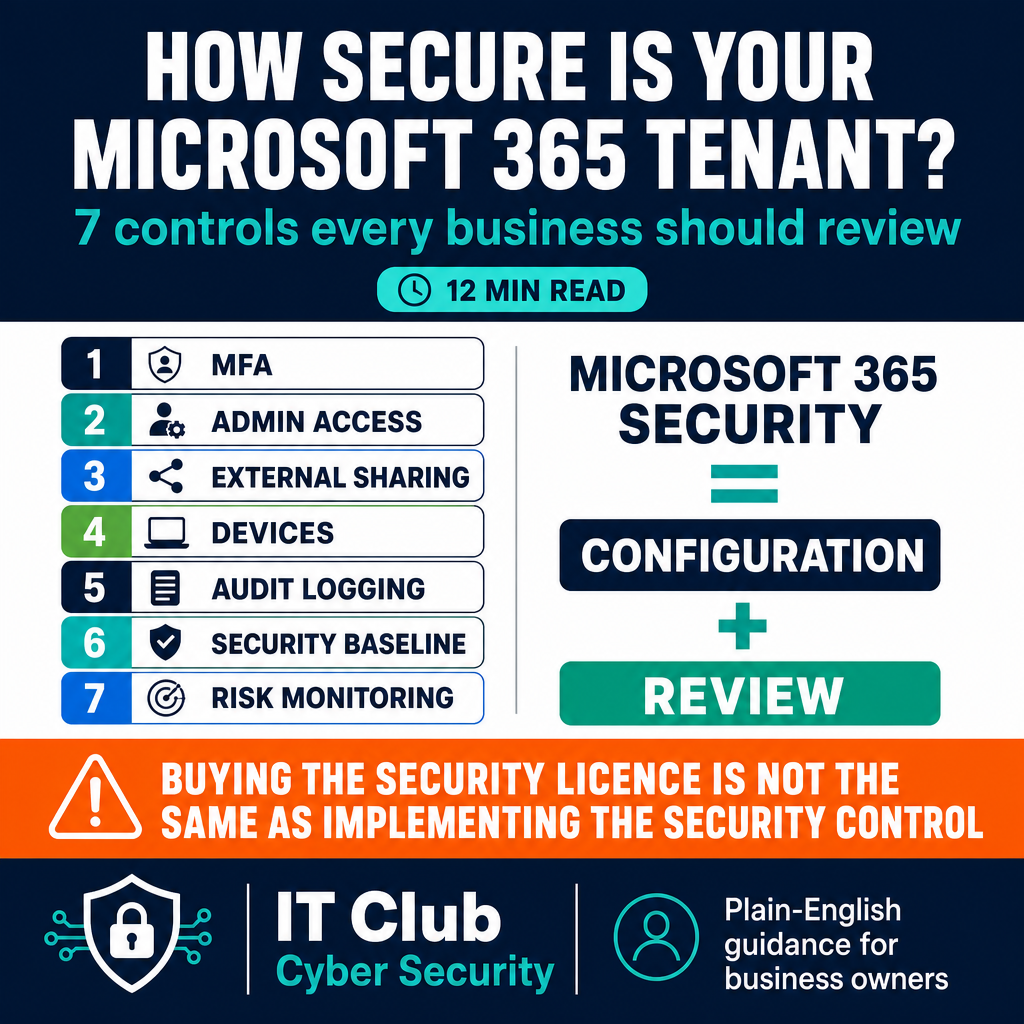
Tap to follow The IT Club Channel on WhatsApp.
Related Articles
1Password Wants AI Agents to Sign In Without Seeing Your Password
1Password’s new agent platform is designed to keep credentials hidden while a person approves a sign-in. It does not control everything an agent can do after login.
Read articleAI Helped Find Serious PHP Security Flaws. What Should Website Owners Do?
Two critical PHP vulnerabilities were disclosed in October 2026. The important lesson for a website owner is to check that the right maintainer has applied the fixes.
Read articleHow Can You Check Who Is Behind an Online Profile?
AI can make convincing profile pictures, voices and videos. Use independent checks and sensible boundaries rather than trusting appearance alone.
Read articleNeed help putting this into practice?
IT Club helps you understand the technology. If you need implementation, support or consultancy, the teams behind IT Club can help.
Altitude IT (opens in a new tab) — IT support, cyber security, Microsoft 365 and technology operations.
Altitude AI (opens in a new tab) — AI discovery, automation, governance and implementation.