Make Chrome Autofill Safer with Windows Hello
IT Club — Powered by Altitude IT (opens in a new tab)

Keep up with IT Club
Add IT Club as a preferred source in Google Search.
Google Chrome provides two distinct device-level verification settings on Windows: one that requires Windows Hello before saved passwords are used, and one that requires device verification before payment methods are autofilled. This article explains what both settings do, how to find them, what they protect against, and the wider browser security controls businesses should consider.
An employee steps away from their Windows laptop for a few minutes. The screen is still unlocked. Chrome is already signed in. Someone else sits down — a colleague, a visitor, or someone who should not be there at all.
Inside that browser may be saved passwords, payment cards, addresses and contact details. Without additional verification, some of that information may be easier to access than the business expects.
The browser knows which information is saved. Windows Hello can help confirm who is trying to use it.
Google provides two device-level verification settings in Chrome on Windows that can help here. They are not enabled by default. They are worth knowing about.
Last checked: 16 August 2026.
The Quick Answer
If your business uses Google Chrome on Windows PCs, there are two verification settings worth reviewing.
For saved passwords, Chrome provides a setting called Use Windows Hello when filling passwords. When enabled, this requires Windows Hello before Chrome fills a saved password, and also before it reveals, copies or edits one. The setting is currently off by default.
To find it: Chrome → Passwords and autofill → Google Password Manager → Settings → Use Windows Hello when filling passwords.
For saved payment cards, Chrome provides a separate setting: Verify it's you to autofill payment methods. When enabled, Chrome requires device verification before using a saved payment method. A screen lock must be configured for this to work.
To find it: Chrome → Settings → Autofill and passwords → Payment methods → Verify it's you to autofill payment methods.
These are separate settings. Enabling one does not enable the other. Both may need to be configured if your business uses saved passwords and saved payment cards.
This is a useful extra control — not a replacement for MFA or good device security.
What is Windows Hello?
Windows Hello is Microsoft's local sign-in system. Depending on the device, it can use a PIN, fingerprint, or facial recognition. The credentials are tied to the device — they are not simply another online account password you type in.
Windows Hello gives applications a way to ask Windows to verify the person sitting at the device. When Chrome asks Windows Hello to confirm your identity, it is asking the operating system to check that you are the authorised user of that specific machine.
A Windows Hello PIN is associated with the device rather than being a reusable account password. Windows Hello also supports biometric verification where the hardware allows. For detail on how Windows Hello works at a technical level, Microsoft's own documentation is the correct reference.
Windows Hello for saved passwords
Google Password Manager, which is built into Chrome, includes a setting called Use Windows Hello when filling passwords. When this is on, Chrome requires Windows Hello verification before it will:
- fill a saved password into a login field
- reveal a saved password
- copy a saved password
- edit a saved password
According to current Google documentation, this setting is off by default.
To find it in Chrome: open Chrome, go to Passwords and autofill, then Google Password Manager, then Settings. The Use Windows Hello when filling passwords toggle is listed there.
If your business stores passwords in Chrome, this is a setting worth reviewing rather than assuming it is already enabled.
Autofill should save you typing — not remove the need to prove you are the person using the computer.
Windows Hello for saved payment cards
Chrome's payment-method autofill also has a verification option, separately from the password setting. Google calls it Verify it's you to autofill payment methods.
When this setting is on, Chrome requires device-level verification — including Windows Hello where supported — before saved payment information is used. A screen lock must be configured on the device for this setting to function.
To find it in Chrome: go to Chrome Settings, then Autofill and passwords, then Payment methods. The Verify it's you to autofill payment methods toggle is listed there.
This is a device-level setting. It applies to the current device and may need configuring separately on each machine where Chrome is used.
A saved card should be convenient for the account owner, not convenient for whoever happens to be using the PC.
These are two separate settings — both may need configuring
This is important enough to state clearly: enabling Windows Hello for passwords does not automatically protect payment cards, and enabling payment verification does not protect passwords. They are different controls in different parts of Chrome's settings.
Turn on one and you have not necessarily turned on the other.
| Setting | Protects | Where to find it |
|---|---|---|
| Use Windows Hello when filling passwords | Saved passwords — filling, viewing, copying, editing | Chrome → Passwords and autofill → Google Password Manager → Settings |
| Verify it's you to autofill payment methods | Saved payment cards | Chrome → Settings → Autofill and passwords → Payment methods |
Both settings are device-level and both are off by default. A user — or IT — needs to enable each one deliberately.
What about saved addresses and other autofill data?
Chrome can also store names, addresses, phone numbers, email addresses, and in some circumstances identity and travel information. Google currently documents stronger verification specifically for passwords and payment methods.
Whether Windows Hello verification applies to other categories of autofill data — such as addresses — should be verified against current Google documentation before drawing conclusions. Do not assume every piece of saved autofill data gets the same protection.
This does not fix an unlocked PC
Windows Hello verification inside Chrome is useful. But it addresses one specific risk — someone using saved browser data on an already-unlocked device. It does not make an unlocked PC safe overall.
Businesses should also configure:
- automatic screen locking after a short inactivity timeout
- a sensible lock timeout — not 30 minutes
- user discipline around walking away from unlocked machines
- Windows sign-in requiring a strong credential
- endpoint security appropriate to the business
The strongest autofill setting is still not a substitute for locking the computer when you walk away.
Windows Hello PIN is not just a PIN
Some people assume a PIN is inherently weaker than a password. In the context of Windows Hello, that comparison is not straightforward.
A Windows Hello PIN is associated with the specific device rather than with an online account. It cannot be used on a different machine the way a reusable password potentially can. Windows Hello also supports biometric verification where the hardware supports it.
This does not mean every Windows Hello configuration is equivalent in strength. But it does mean the phrase 'it's just a PIN' underestimates what Windows Hello provides. For a full technical explanation of Windows Hello credentials, Microsoft's documentation is the correct source.
Shared PCs and individual user accounts
Windows Hello cannot create individual accountability if everybody shares the same Windows account.
If more than one person routinely uses a device, each person should normally have their own Windows user account. Browser security — including Windows Hello verification — depends heavily on knowing which user owns the browser profile, the saved passwords, the payment information, the browsing history and the active sessions.
A shared Windows login is a shared identity. Verification built on top of that shared identity does not tell you who actually approved the action.
Chrome profiles
Chrome supports multiple profiles within the browser. A user might have a work profile and a personal profile, or be signed into different Google accounts. Saved passwords, payment information and browsing history can vary between profiles.
Businesses should understand whether staff are signed into Chrome with a personal Google account, a work account, or both — and whether passwords and payment cards from those accounts are syncing.
A Chrome profile helps separate browser data. A separate Windows user account provides the stronger device-level separation.
Chrome profile separation is not a security boundary equivalent to separate Windows user accounts. Do not rely on profile separation as the primary protection for sensitive business credentials.
Should businesses save passwords in Chrome?
This is worth considering deliberately rather than letting it happen by default.
Google Password Manager provides password generation, saved credentials, synchronisation across devices, security checks and — with the setting enabled — Windows Hello protection. For many business users it is materially better than reusing passwords, writing them down or storing them in spreadsheets.
Larger organisations may prefer enterprise password managers, centrally managed identity, passkeys or SSO depending on their requirements. These are legitimate choices.
The important question is not whether the password manager lives in the browser. It is whether the organisation manages credentials deliberately.
Password manager and autofill are related but separate
It helps to understand the distinction. A password manager stores and manages credentials. Autofill inserts those credentials into login fields when you need them. The Windows Hello verification setting is controlling when saved information can be used — the point where stored credentials become active.
Saving a password and filling a password are related but separate actions.
MFA still matters
Windows Hello protects local access to saved credentials. It does not stop every account takeover scenario.
Important services should still use MFA — and phishing-resistant MFA or passkeys where practical. Windows Hello protects access to the saved credential. MFA protects the account when that credential is used.
These two controls sit at different points in the security chain. Both matter.
Passkeys and the longer-term direction
Passkeys reduce reliance on reusable passwords and provide phishing-resistant authentication in services that support them. Windows Hello itself can be used as part of passkey authentication — it provides the local verification step that unlocks a passkey stored on the device.
The long-term direction is fewer reusable passwords, not better ways of repeatedly typing them.
IT Club has separate guides on setting up passkeys for Microsoft and Google accounts. If your business has not reviewed passkey options, that is a worthwhile next step alongside the settings covered in this article.
Payment details on business PCs — challenge the requirement
Before enabling payment verification, it is worth asking a more fundamental question: which members of staff actually need business payment card details saved in their browser?
Someone who handles purchasing, pays invoices or manages subscriptions may legitimately need those details accessible. A general staff member may have no business reason to store company payment cards at all.
| Role | Likely need to save company card? |
|---|---|
| Accounts / purchasing | Possibly — review what is saved |
| General user | Unlikely — consider removing saved cards |
| Manager authorising purchases | Depends on purchasing process |
| Administrator | Depends on what they actually buy |
The safest saved payment card is the one the user genuinely needs to have access to.
Card security codes
Chrome currently supports saving card security codes (CVV or CVV2 numbers) in some circumstances. Users can save, edit, remove or disable saving of security codes depending on the configuration.
Businesses should consider whether saving card security codes alongside card numbers is appropriate for their situation. The combination of card number, expiry date and security code is what most online payment forms require.
Convenience settings deserve more scrutiny when the information being saved can spend money.
Whether saving card security codes in Chrome affects PCI DSS obligations is a question for a qualified assessor familiar with your specific setup — IT Club does not make compliance conclusions here.
Google Account sync
When users sign into Chrome with their Google Account, certain saved information can synchronise across devices. Passwords, payment methods and addresses may be associated with Chrome, the Google Account, or Google Wallet depending on configuration.
Windows Hello verification applies to the device where the check is performed. If a saved password syncs to another device and that device does not have Windows Hello verification enabled, the protection on the first device does not carry over.
If users sync sensitive information, account security becomes important too. Protecting the PC matters. Protecting the cloud account holding or syncing the data matters too.
- Use strong Google Account authentication
- Enable MFA or passkeys on the Google Account
- Review recovery methods
- Monitor account activity
What Windows Hello autofill verification does not protect against
It is worth being clear about limitations. Windows Hello autofill verification does not by itself prevent:
- phishing where the user willingly approves access
- malware already running as the user on the device
- account compromise that happens outside the device
- session-cookie theft — an attacker with a valid session cookie may not need the password
- malicious browser extensions with appropriate permissions
- weak or absent MFA on the account itself
- shared Windows accounts where individual accountability cannot exist
- an already compromised device
Good local authentication reduces one risk. It does not turn a compromised PC into a safe PC.
Browser extensions and what they can see
Browser extensions can request permissions that allow them to read content on the pages a user visits. Depending on those permissions and their design, extensions may potentially access information that appears in the browser — including saved credentials in some circumstances.
Businesses should periodically review installed extensions, check what permissions each extension has requested and whether that access is genuinely needed, and consider central management of extension allow and block lists.
A secure browser configuration includes controlling what you add to the browser, not just what you save inside it.
The IT Club Browser Security Model
Browser security does not sit in one place. Think of it as a chain of layers, each of which needs attention:
| Layer | What it covers | Key controls |
|---|---|---|
| Device | The physical machine and operating system | Lock screen, patching, encryption |
| User | Individual identity and local authentication | Individual Windows accounts, Windows Hello |
| Browser | Chrome configuration and extensions | Managed Chrome, autofill controls, extension management |
| Credential | How passwords and passkeys are stored and used | Password manager, passkeys |
| Account | The online account the credential unlocks | MFA, recovery methods, account monitoring |
Browser security is only one layer of account security.
Windows Hello autofill verification sits in the Browser and User layers. It depends on the Device layer being in reasonable shape first. And it does not protect the Account layer on its own — that still requires MFA.
Business browser security checklist
Work through this checklist on each device where Chrome is used for business purposes.
Windows
- □ Supported Windows version installed and up to date
- □ Automatic screen lock configured with a short timeout
- □ Windows Hello configured — PIN, fingerprint or facial recognition
- □ BitLocker or device encryption enabled where appropriate
- □ Each user has their own Windows account — no shared logins
Chrome
- □ Current supported version of Chrome installed
- □ Automatic Chrome updates enabled
- □ Use Windows Hello when filling passwords — reviewed and enabled if appropriate
- □ Verify it's you to autofill payment methods — reviewed and enabled if appropriate
- □ Saved payment cards reviewed — unnecessary cards removed
- □ Saved card security codes reviewed
- □ Unnecessary browser extensions removed
- □ Extension permissions reviewed
Account
- □ Google Account MFA or passkeys enabled
- □ Account recovery methods reviewed and current
- □ Work and personal Chrome profiles reviewed — appropriate separation in place
Passwords
- □ Unique passwords used for all accounts
- □ A password manager in use
- □ Weak or reused passwords reviewed and replaced
- □ Passkeys used where the service supports them
Business
- □ Company payment card access restricted to staff who genuinely need it
- □ Browser policies documented — staff know what is and is not permitted
- □ Shared Windows accounts avoided
What businesses should do
- 1. Lock PCs automatically — configure a short inactivity timeout on every device
- 2. Use individual Windows accounts — every person should have their own login
- 3. Configure Windows Hello — set up PIN, fingerprint or facial recognition on each device
- 4. Enable Chrome Windows Hello verification for passwords — find it in Google Password Manager settings
- 5. Review payment autofill verification — enable the Verify it's you setting where payment cards are saved
- 6. Review what payment information is actually saved — remove cards staff do not need
- 7. Use MFA or passkeys on important accounts — Windows Hello protects the credential, MFA protects the account
- 8. Review Chrome sign-in and sync — understand what is syncing and whether the Google Account is appropriately protected
- 9. Manage browsers centrally where practical — enterprise controls add consistency the user-level setting cannot
- 10. Test the settings — verify Windows Hello verification is actually being asked before trusting that it is working
Security settings only count if they are actually enabled on the devices people use.
Administrator Technical Note
Chrome can be managed centrally using Chrome Enterprise and Google Admin console, or via Group Policy on Windows. This section covers what can and cannot currently be controlled centrally. Verify current policy names and availability against the Chrome Enterprise documentation before implementing.
Centrally manageable
- PasswordManagerEnabled — control whether Chrome's built-in password manager can be used
- AutofillCreditCardEnabled — control whether credit card autofill is enabled
- AutofillAddressEnabled — control whether address autofill is enabled
- BrowserSignin — control whether users can sign into Chrome with a Google Account
- SyncDisabled — disable Chrome sync entirely
- BrowserLabsEnabled — control access to experimental features
- ExtensionInstallBlocklist / ExtensionInstallAllowlist — manage which extensions can be installed
- ExtensionInstallForcelist — push extensions to managed devices
- ChromeUpdates — manage update channels and timing via Google Admin console or update management tools
User and device configured — not centrally enforceable via standard policy
As of the date of this article, there is no confirmed standard Chrome Enterprise policy that centrally mandates or enforces the Use Windows Hello when filling passwords setting or the Verify it's you to autofill payment methods setting. Both currently appear to require configuration at the device or user level.
This is an important distinction. A security setting becomes much more valuable to a business when IT can verify it across the estate. Without central enforcement, the Windows Hello autofill settings rely on each user or device being configured individually — which is harder to audit and maintain.
Verify current policy availability against the Chrome Enterprise policy list at the time of your deployment. Policy availability changes between Chrome versions.
Windows Hello requirements
- Windows Hello must be configured on the device for Chrome to use it
- Payment verification requires a screen lock to be configured
- Devices without fingerprint or camera hardware can use Windows Hello PIN
Windows user profiles
If multiple staff use one machine, ensure each has a separate Windows user account. Group Policy or Intune can enforce this at the domain or Entra ID level. Chrome policies applied via Group Policy or Google Admin console follow the Windows user context where appropriate.
Managed browser sign-in
Where Chrome is managed via a Google Workspace account, ensuring staff sign into Chrome with their work Google Account (rather than a personal one) allows admin policies to apply and keeps saved passwords within the work account rather than a personal account. Review the BrowserSignin and ManagedAccountsSigninRestriction policies.
Extension management priority
Extension allow and block lists can be configured centrally. Defining a default of block-all and then allowing specific approved extensions is a stronger starting position than allowing all extensions and trying to block specific ones. Extensions should be reviewed on a regular schedule — the IT Club Browser Extension Security Audit guide in the Knowledge Centre covers this process.
Cyber Essentials
Windows Hello autofill verification is not specifically a Cyber Essentials requirement. Enabling it does not make a device Cyber Essentials compliant.
However, the wider controls covered in this article — individual user accounts, screen locking, software patching, access control and authentication — directly support the access control and user authentication requirements in Cyber Essentials. This setting can improve security, but turning it on does not make a device 'Cyber Essentials compliant'.
Operational Heartbeat — keep browser security current
Browser configuration changes because Chrome updates, new features appear, users add extensions, passwords accumulate, payment cards change, devices change and Google policies evolve.
Browser security needs an Operational Heartbeat: versions, extensions, saved credentials, authentication and autofill controls should be reviewed rather than assumed to remain secure.
A periodic browser review should cover Chrome version and update health, autofill settings, password manager status, browser sign-in, extension review, Windows Hello configuration, screen lock timeout, account security, passkey adoption and whether any devices have changed hands.
The IT Club View
This is a small setting. But it represents a useful security principle: convenience should require proportionate verification.
Saved passwords are useful. Autofill is useful. Saved payment information is useful. The mistake is treating convenience as the same thing as trust.
If Chrome is about to fill something valuable, asking Windows to confirm who is sitting at the keyboard is a sensible extra step.
It will not stop every attack. But it is simple, low-friction, useful, and worth enabling where appropriate.
Security does not always require another product. Sometimes it means finding the stronger setting already available in the software you use every day.
Plain-English Takeaway
Google Chrome can use Windows Hello to add an extra verification step before saved passwords are filled, revealed, copied or edited, and Chrome also offers device verification before saved payment methods are autofilled. These controls are useful on business PCs because they make it harder for someone using an unlocked device to immediately make use of saved information. They do not replace screen locking, MFA, passkeys or good endpoint security, but they are simple additional controls worth reviewing.
Not sure how securely your business browsers are configured?
Ask the IT Club Advisor about Chrome, saved passwords, Windows Hello, passkeys, browser extensions or how to manage browser security across company PCs.
Free to ask. No credit card. No sales pressure. Fair usage applies.
Related Reading
Related Questions
Can Chrome use Windows Hello?
Yes. Chrome on Windows can ask Windows Hello to verify your identity before filling saved passwords and before autofilling payment methods. These are two separate settings that both need to be enabled.
How do I protect Chrome passwords with Windows Hello?
Open Chrome, go to Passwords and autofill, then Google Password Manager, then Settings. Enable the Use Windows Hello when filling passwords toggle.
What does 'Use Windows Hello when filling passwords' do?
When enabled, Chrome requires Windows Hello verification — PIN, fingerprint or facial recognition — before it will fill a saved password, reveal it, copy it or allow it to be edited. The setting is currently off by default.
Is Chrome Windows Hello password protection on by default?
No. According to current Google documentation, Use Windows Hello when filling passwords is off by default. It needs to be enabled deliberately.
Can Windows Hello protect saved cards in Chrome?
Yes. Chrome has a separate setting called Verify it's you to autofill payment methods that requires device verification before saved payment cards are used. A screen lock must be configured on the device.
What does 'Verify it's you to autofill payment methods' mean?
It means Chrome will ask for device-level verification — including Windows Hello where supported — before inserting a saved payment card into a form. It is in Chrome Settings → Autofill and passwords → Payment methods.
Does Chrome autofill card security codes?
Chrome currently supports saving and autofilling card security codes in some circumstances. Users can manage whether security codes are saved, edited or removed.
Can I stop Chrome saving card security codes?
Yes. Chrome's payment settings allow users to manage whether security codes are saved alongside card details. Businesses should review whether saving security codes is appropriate given what the information can be used for.
Is Chrome autofill safe?
Chrome autofill is a useful feature that becomes safer with the Windows Hello verification settings enabled. It remains dependent on the device being locked appropriately, individual user accounts being used and the Google Account being protected with MFA.
Is Google Password Manager safe for business?
For many businesses it is a significant improvement over reusing passwords or storing them in spreadsheets. Larger organisations may choose enterprise password managers or centrally managed identity solutions. The key question is whether credentials are managed deliberately, not whether the manager lives in the browser.
Should businesses store passwords in Chrome?
It depends on the business and its requirements. Chrome's built-in password manager — with Windows Hello verification enabled — is suitable for many small and medium businesses. Enterprise organisations often choose dedicated password management tools or SSO. The important factor is that passwords are managed in a system that prevents reuse and provides security checks.
Should businesses save payment cards in Chrome?
Only for staff who genuinely need to use them. Review who has business payment cards saved and whether each person has a legitimate business reason to do so. Remove cards from accounts where there is no clear need.
Can someone use my saved passwords if my PC is unlocked?
Without additional settings, someone with access to an unlocked PC and an open Chrome browser may be able to use saved autofill data. Enabling the Use Windows Hello when filling passwords setting adds a verification step that requires Windows Hello before passwords can be filled or viewed.
Does Windows Hello replace MFA?
No. Windows Hello protects access to saved credentials on a local device. MFA protects the account when those credentials are used to sign in. They address different risks and both remain important.
Does Windows Hello replace a password manager?
No. Windows Hello verifies who is using the device. A password manager stores and manages credentials. The Windows Hello verification setting in Chrome applies when the password manager is about to use a stored credential.
Is Windows Hello a passkey?
Windows Hello can be used as the local verification method in a passkey authentication flow. Passkeys are a broader standard for phishing-resistant authentication. Windows Hello is the mechanism Microsoft uses on Windows to unlock or create passkeys.
Can Windows Hello use fingerprint or face recognition?
Yes, where the device has compatible hardware. On devices without a fingerprint reader or suitable camera, Windows Hello uses a PIN instead. The PIN is device-bound and works differently from a reusable account password.
Should staff share Windows accounts?
No. Each person should have their own Windows user account. Windows Hello verification cannot provide individual accountability where multiple people share a single login.
Are Chrome profiles secure?
Chrome profiles separate browser data within the browser. They are not a security boundary equivalent to separate Windows user accounts. If staff need strong separation, individual Windows accounts provide the correct device-level boundary.
Does Chrome sync passwords between devices?
When users are signed into Chrome with a Google Account and sync is enabled, saved passwords can sync across devices. Windows Hello verification on one device does not carry over to another device. Each device needs its own verification configured.
Can businesses manage Chrome centrally?
Yes. Chrome Enterprise and Google Admin console allow IT to manage Chrome on managed devices. Group Policy can also be used on Windows. This includes controls for the password manager, autofill, sync, extensions and update management.
Can IT enforce Windows Hello autofill protection in Chrome?
As of the time of writing, there is no confirmed standard Chrome Enterprise policy that centrally mandates the Windows Hello autofill verification settings. Both settings currently require configuration at the device or user level. Verify current policy availability against Chrome Enterprise documentation — this may change with Chrome updates.
Do browser extensions affect security?
Yes. Extensions can request permissions to read content on pages the user visits, which may include information displayed in the browser. Businesses should review installed extensions, check the permissions they have requested and consider whether central management of extension lists is appropriate.
Is this required for Cyber Essentials?
No. Windows Hello autofill verification is not a specific Cyber Essentials requirement. However, the underlying controls — individual accounts, screen locking, access control and authentication — support Cyber Essentials requirements. Enabling this setting does not make a device Cyber Essentials compliant.
How often should browser security be reviewed?
Browser configuration should be part of a regular Operational Heartbeat review — at minimum quarterly or whenever devices change hands, Chrome has a major update or users are added or removed. Extensions, saved credentials, authentication settings and autofill controls should all be included.
Plain-English Takeaway
Google Chrome can use Windows Hello to add an extra verification step before saved passwords are filled, revealed, copied or edited, and Chrome also offers device verification before saved payment methods are autofilled. These controls are useful on business PCs because they make it harder for someone using an unlocked device to immediately make use of saved information. They do not replace screen locking, MFA, passkeys or good endpoint security, but they are simple additional controls worth reviewing.
Need the practical steps?
A short, instruction-led version of this topic is available in the Knowledge Centre.
View the Knowledge Centre Guide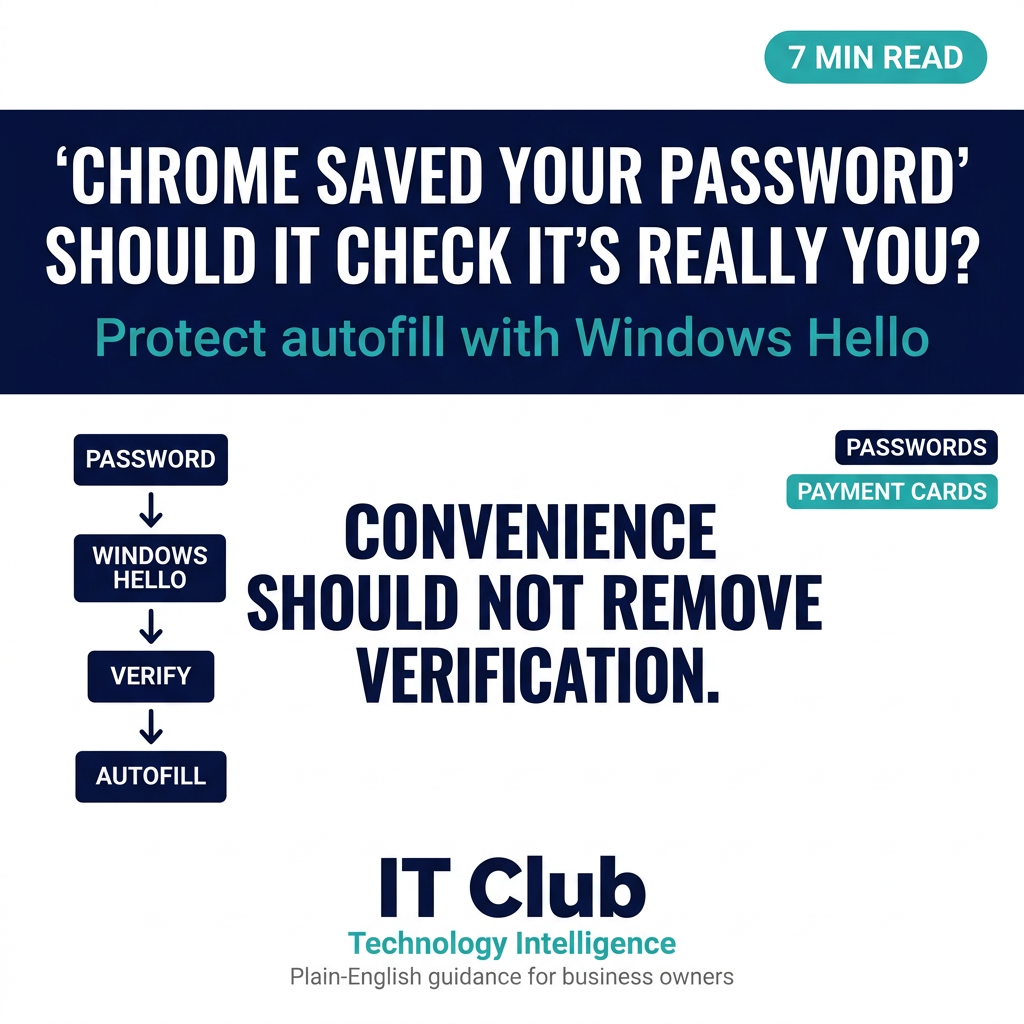
Tap to follow The IT Club Channel on WhatsApp.
Related Articles
1Password Wants AI Agents to Sign In Without Seeing Your Password
1Password’s new agent platform is designed to keep credentials hidden while a person approves a sign-in. It does not control everything an agent can do after login.
Read articleAI Helped Find Serious PHP Security Flaws. What Should Website Owners Do?
Two critical PHP vulnerabilities were disclosed in October 2026. The important lesson for a website owner is to check that the right maintainer has applied the fixes.
Read articleHow Can You Check Who Is Behind an Online Profile?
AI can make convincing profile pictures, voices and videos. Use independent checks and sensible boundaries rather than trusting appearance alone.
Read articleNeed help putting this into practice?
IT Club helps you understand the technology. If you need implementation, support or consultancy, the teams behind IT Club can help.
Altitude IT (opens in a new tab) — IT support, cyber security, Microsoft 365 and technology operations.
Altitude AI (opens in a new tab) — AI discovery, automation, governance and implementation.