Still Running Windows Server 2019? It's Time to Plan the Upgrade
IT Club — Powered by Altitude IT (opens in a new tab)

Keep up with IT Club
Add IT Club as a preferred source in Google Search.
Windows Server 2019 is still supported and continues to receive security updates, but Mainstream Support ended in January 2024 and Extended Support ends on 9 January 2029. Businesses should use the remaining support window to identify every Server 2019 system, understand applications and dependencies, and plan upgrades or migrations well before the deadline.
Quick Answer
Windows Server 2019 is still receiving security updates, but Extended Support ends on 9 January 2029. There is no need to panic, but there is a need to plan.
- Inventory every Server 2019 system and the workload it supports.
- Check application, hardware, backup and dependency requirements.
- Decide whether each workload should be upgraded, migrated, replaced or retired.
- Finish the work well before the support deadline, with time to test and recover.
Quick Answer
Windows Server 2019 is still supported. Microsoft ended Mainstream Support on 9 January 2024 but continues Extended Support until 9 January 2029. That means security updates continue today.
However, businesses still running Server 2019 should now:
- Identify every Server 2019 system
- Document what each server does
- Check hardware age
- Identify application dependencies
- Decide whether each workload should be upgraded, migrated, replaced or retired
- Budget for the work
- Complete the migration well before January 2029
For many businesses, 2026–2027 is the sensible planning and migration window.
The objective is not to replace Server 2019 tomorrow. It is to make sure January 2029 never becomes an emergency.
Picture a typical business server room. One physical Windows Server 2019 machine. Active Directory keeping everyone logged in. File shares that have accumulated years of documents. Perhaps several Hyper-V virtual machines running line-of-business applications. Sage or another accounting package. Backups running overnight. Remote access configured. Printers that somehow still work.
The server works. It is patched. Nobody is complaining. The obvious response is: why touch it?
Then ask a different question: when was the replacement plan written? If the answer is "we'll deal with it when support runs out," the business is creating a future emergency unnecessarily.
A working server and a strategically healthy server are not necessarily the same thing.
Windows Server 2019 is not an emergency in 2026. It is a deadline you can already see coming.
Understanding Microsoft's Support Lifecycle
Microsoft's product lifecycle for Windows Server 2019 is straightforward. Verify these dates against Microsoft's official lifecycle documentation immediately before publication.
| Milestone | Date |
|---|---|
| Released | 13 November 2018 |
| Mainstream Support ended | 9 January 2024 |
| Extended Support ends | 9 January 2029 |
Mainstream Support historically covers security updates, non-security updates, product improvements and the broader Microsoft support experience. Extended Support primarily continues security updates, but the product is no longer in its normal feature-development phase.
Supported does not mean current.
Server 2019 is receiving security patches today. That is a fact worth stating clearly, because it changes what the correct response is. This is a planning article, not a fire alarm.
Server 2019 Lifecycle Timeline
- 2018 — Windows Server 2019 released
- 2024 — Mainstream Support ended
- 2026 — You are here (Extended Support continues)
- 2027 — Migration should be well underway
- 2028 — Final contingency buffer
- 9 January 2029 — Extended Support ends
Now is the time to plan. The 2026–2027 window is where the work should happen. 2028 is contingency — not the year you finally start looking.
Why 2029 Is Closer Than It Looks
A server upgrade is rarely: backup → click upgrade → done. Real projects routinely involve more than the operating system itself.
- Application compatibility testing with every vendor
- Database versions and SQL lifecycle
- Active Directory, DNS and DHCP configuration
- File permissions and share structure
- Printers and print servers
- Remote Desktop roles and licences
- Hyper-V virtual machine versions and guest OS
- Backup agents and monitoring software
- Antivirus and endpoint detection and response
- Line-of-business software and third-party suppliers
- Hardware compatibility
- Downtime planning and user communication
- Testing and rollback planning
- User acceptance
- Licensing review
The operating-system upgrade is often the easy part. Discovering everything that depends on the server is the project.
What Does the Server Actually Do?
Before any migration decision, document every Server 2019 machine. Do not guess. For each server record:
| Field | Notes |
|---|---|
| Server name | |
| Role | AD, DNS, DHCP, file, print, Hyper-V, RDS, SQL, application… |
| Physical or virtual | |
| Hardware age | Purchase date, warranty status |
| Applications installed | Vendor, version, licence |
| Users and dependencies | Who and what relies on this server |
| Databases | SQL version, edition, backup status |
| Backup | Product, schedule, retention |
| Recovery requirement | RTO and RPO |
| External access | VPN, RDP, published services |
| Supplier | Managed service provider, hardware vendor |
| Licensing | Windows Server, CALs, applications |
| Target platform | Upgrade, migrate, cloud, retire |
| Target date | |
| Status | Not started, in progress, complete |
Do not upgrade a server until you know why it exists.
Should the Server Still Exist at All?
This is the most important question in the whole project. Do not assume Server 2019 must become Server 2025. Challenge every workload before committing to an upgrade path.
| Option | When to consider it |
|---|---|
| Upgrade | Keep the workload, move to a current Windows Server release |
| Migrate | Move the workload to a different server, platform or architecture |
| Replace | Replace the application with a newer system that does not require this server |
| Cloud | Move to Microsoft 365, Azure, SaaS or another appropriate hosted service |
| Retire | Remove a workload that is no longer actively needed |
| Consolidate | Combine unnecessary servers where technically sensible and licensed correctly |
The best Server 2019 upgrade may be not needing that server anymore.
If an ageing Server 2019 machine exists mainly to host Sage, investigate whether Sage itself can now move to a supported cloud platform before buying or building another server. IT Club recently covered exactly this question.
Can We Move Sage to the Cloud Instead of Buying a New Server? →
Server 2022 or Server 2025?
For a new migration project beginning in 2026, Server 2025 should normally be evaluated first because it provides the longer remaining support lifecycle.
| Version | Mainstream Support ends | Extended Support ends |
|---|---|---|
| Windows Server 2022 | 13 October 2026 | 14 October 2031 |
| Windows Server 2025 | 13 November 2029 | 14 November 2034 |
The newest operating system is only useful if the application you need is supported on it. Application vendor compatibility comes before lifecycle optimisation.
Ask every application vendor whether their current supported version certifies Windows Server 2025. If not, ask about Server 2022. Do not assume either way.
Direct Server 2019 → Server 2025 Upgrade
Microsoft's current documentation supports direct in-place upgrade from Windows Server 2019 to Windows Server 2025 for appropriate non-clustered systems. Starting with Server 2025, supported non-clustered in-place upgrades can span up to four versions. Verify this against Microsoft's current upgrade documentation immediately before any production work.
Supported upgrade path (for appropriate servers)
Windows Server 2019 → Windows Server 2025 (direct in-place upgrade, where role, edition, licensing and application support all permit it)
Microsoft supporting the operating-system upgrade does not mean every application installed on the server supports the upgrade. A supported upgrade path is not the same as a safe upgrade for every server.
In-Place Upgrade or Migration?
This is not a binary choice — it depends on the individual server, its applications, its hardware and the business's risk appetite.
| Approach | Potential benefits | Potential disadvantages |
|---|---|---|
| In-place upgrade | Quicker; retains configuration and applications; less migration work; potentially less disruption | Retains years of accumulated configuration; application compatibility risk; ageing hardware remains; old server design remains; rollback complexity |
| Migration / rebuild | Clean environment; new hardware or platform; configuration review; easier redesign; technical debt reduction | More planning and testing; migration effort; potentially more downtime; application reinstallation required |
An in-place upgrade changes the operating system. A migration gives you the opportunity to change the architecture.
In-place upgrade may be appropriate for a healthy virtual machine with supported applications, a simple server role, a recent infrastructure, a strong and tested backup, and explicit vendor approval. Migration and rebuild is often the safer choice for domain controllers, complex RDS environments, fragile application servers, unknown systems and ageing physical hardware.
Domain Controllers
Active Directory deserves specific attention. If Server 2019 hosts a domain controller, do not casually perform an operating-system upgrade without a full AD health review first.
- Forest and domain functional level
- Replication health (repadmin /replsummary)
- DNS configuration
- FSMO role holders
- SYSVOL replication (DFS-R or legacy FRS)
- Time synchronisation hierarchy
- Old domain controllers that should have been retired
- Unsupported applications depending on AD schema
- System state and AD backup
A common approach for replacing a Server 2019 domain controller involves joining a new server to the domain, promoting it as a domain controller, verifying replication, transferring FSMO roles where needed, and then demoting the old server. Do not treat this as a universal script — AD environments vary considerably.
Domain controllers deserve a migration plan, not an optimistic upgrade button.
Hyper-V Hosts
If Server 2019 acts as a Hyper-V host, the physical hardware lifecycle matters just as much as the operating system.
- Physical hardware age, firmware and BIOS updates
- Storage health — RAID controller, disks and SSD wear levels
- Network interface cards and drivers
- VM versions and whether guests support the target host OS
- Guest operating systems and their own lifecycle
- Checkpoints — ensure they are not being used as a substitute for backup
- Backup and replication coverage for every VM
- Hardware compatibility list for Windows Server 2025
- Licensing — Windows Server licences cover VMs based on physical core count and edition
Note the distinction: Windows Server 2019 with the Hyper-V role installed is different from Microsoft Hyper-V Server 2019 (the free standalone hypervisor). Microsoft Hyper-V Server 2019 also reaches end of Extended Support on 9 January 2029 — verify this against Microsoft's current documentation. Both need a migration plan.
If the Hyper-V host is ageing as well as the operating system, upgrading only Windows may solve the wrong lifecycle problem.
Hardware Age
Server 2019 was released in 2018. A physical server originally purchased around that period could now be seven to eight years old — but do not assume every Server 2019 server is that old. Some were deployed significantly later. Check the actual purchase date.
- Purchase date and original warranty period
- Current warranty status — extended or expired
- Firmware and BIOS currency
- RAID controller health and disk status
- SSD wear levels where applicable
- Power supply age and condition
- UPS battery test results
- Memory errors in system logs
- Vendor hardware support availability
- TPM version and Windows Server 2025 hardware compatibility
Do not spend money extending the operating-system life of hardware that is already beyond the lifecycle you would normally accept.
Application Compatibility
This is one of the most critical steps and one of the most commonly skipped. Before changing any Windows Server version, contact every application vendor and ask directly:
- Does your current supported application version support Windows Server 2025?
- If not, does it support Windows Server 2022?
- What is your planned certification timeline for the newer OS versions?
- Are there known issues or limitations with either version?
Applications requiring this check include: SQL Server, Sage and other accounting software, ERP systems, CRM platforms, document management, backup agents, endpoint detection and response, monitoring tools, print management software, line-of-business applications, device drivers, and anything with an integration or API dependency.
Working and supported are two different tests. Do not rely on 'it currently works' as your compatibility evidence.
SQL Server
SQL Server has its own separate lifecycle. Do not assume that upgrading Windows Server automatically modernises the database engine underneath your applications.
- SQL Server version and edition
- Database compatibility level
- Application vendor's SQL version requirements
- SQL Server licensing (per core or server+CAL)
- Backup and application-aware recovery status
- Recovery procedure and tested restore
You can move the operating system forward and still leave an unsupported database underneath the application.
Remote Desktop Services
If Server 2019 provides Remote Desktop Services, treat the migration as an opportunity to review whether RDS is still the right architecture for the business — not just a version upgrade exercise.
- RDS roles in place — Connection Broker, Session Host, Web Access, Gateway, Licensing
- RDS CAL count and type (User or Device) — licences are not automatically forward-compatible
- Published applications and compatibility with the target OS
- User profiles and folder redirection
- Printer redirection and device drivers
- MFA configuration and certificate validity
- VPN or gateway configuration
- External exposure and security review
- Application vendor support for RDS on the target platform
Possible alternatives worth evaluating alongside an RDS rebuild include Azure Virtual Desktop, Windows 365, SaaS application replacements, or specialist application hosting. Do not claim cloud is automatically cheaper — a proper total cost comparison is needed for each option.
An RDS refresh is an opportunity to ask whether users still need a Windows desktop just to reach one old application.
File Servers
If Server 2019 hosts file shares, the migration decision should consider whether those files belong on a new Windows Server at all.
- SharePoint Online — for documents that benefit from collaboration and version history
- OneDrive — for personal work files with Microsoft 365 licensing already in place
- Azure Files — for SMB share access from cloud-hosted workloads
- Specialist document management — where compliance or workflow features are needed
- Newer Windows Server — where application dependencies, mapped drive requirements or volume makes cloud migration unsuitable
Review file types, permission structures, path dependencies in applications, database files, volume, sync requirements and user behaviour before deciding. Moving file shares is not a single operation.
A file share is not automatically a SharePoint site.
Cyber Security and Extended Security Updates
Today, Server 2019 still receives security updates through Extended Support. That is the honest and accurate position.
After Extended Support ends on 9 January 2029, normal security updates cease — unless an applicable Extended Security Updates arrangement exists. Microsoft describes ESU as a paid last-resort option intended as a temporary bridge rather than a long-term solution.
Verify whether Windows Server 2019 ESU terms and availability have been formally published before making any plans that depend on them. Do not treat ESU as a continuation of normal support.
Extended Security Updates are an emergency bridge, not an infrastructure strategy.
Cyber Essentials
For UK businesses holding or seeking Cyber Essentials certification, the position on Server 2019 must be stated carefully.
Cyber Essentials requires that in-scope software receives security updates from its vendor. While Server 2019 remains within Microsoft's Extended Support period and continues to receive security updates, its age alone does not automatically make it a Cyber Essentials failure.
Once Extended Support ends in January 2029 and security updates cease, an in-scope Server 2019 system would become a certification issue unless it is removed, appropriately isolated where Cyber Essentials requirements permit, or otherwise addressed within current scheme requirements. Verify current IASME/NCSC Cyber Essentials requirements before advising on this.
Server 2019 is not currently a Cyber Essentials failure simply because it is old — but January 2029 creates a deadline that cannot be ignored.
Patching Still Matters
A migration planned for 2027 is not an excuse for an unpatched server in 2026. Until decommissioning, every Server 2019 machine should:
- Receive Windows security updates promptly
- Have application patches applied — SQL, backup agents, management software
- Run current endpoint protection
- Have external access reviewed for unnecessary exposure
- Have administrator and service account access reviewed
- Have known vulnerabilities tracked and remediated
A migration planned for next year is not an excuse for an unpatched server today.
Backups Before Any Major Work
Microsoft requires a full backup before an in-place upgrade. Verify current Microsoft wording in the upgrade documentation before proceeding.
Before any significant upgrade or migration work, confirm:
- Full server backup completed successfully
- System state backup where appropriate
- Application-aware backup covering SQL and Exchange where present
- Separate database backups for critical databases
- Offsite or immutable copy confirmed
- Recovery credentials and encryption keys documented and accessible
- Backup integrity verified — not just the job log
- Recovery procedure written and tested
A successful backup job is not the same thing as a proven recovery.
The IT Club Server Lifecycle Framework — 7 Questions
Apply these seven questions to every server before making any upgrade or migration decision.
- 1. IDENTIFY — What servers exist?
- 2. UNDERSTAND — What does each one do?
- 3. SUPPORT — When does vendor support end for the OS, applications and hardware?
- 4. DEPEND — What applications, users and systems rely on it?
- 5. DECIDE — Upgrade, migrate, replace, move to cloud, or retire?
- 6. TEST — Can the new environment and recovery plan be proven before cut-over?
- 7. RETIRE — Can the old infrastructure be safely and completely removed?
Do not start with 'How do we upgrade this server?' Start with 'Why does this server still exist?'
Server 2019 Readiness Scorecard
Use this qualitative scorecard to understand where to focus attention. Do not convert it to a percentage — the value is in identifying specific gaps.
| Area | Green — known and planned | Amber — needs work | Red — unknown or approaching risk |
|---|---|---|---|
| Lifecycle | Support dates recorded; migration date set | Aware of dates but no plan yet | Dates unknown; no action taken |
| Workload knowledge | All roles and dependencies documented | Partial documentation | Unknown what the server does |
| Hardware | Age known; hardware within acceptable lifecycle | Getting old but within warranty | Unknown age; expired warranty; hardware concerns |
| Application support | All vendors confirmed for target OS | Some vendors checked; others pending | No vendor compatibility checks done |
| Backup and recovery | Backup proven with a tested restore | Backup runs but restore not recently tested | No backup or untested backup |
| Security | Fully patched; EDR in place; access reviewed | Mostly current; some gaps | Unpatched; no endpoint protection; unknown exposure |
| Migration plan | Plan written; budget agreed; date set | Options identified; no formal plan | No plan; no budget; no date |
For each red area, identify the biggest risk and the next single action. Set a target migration date for each Server 2019 system.
Practical Server 2019 Checklist
Inventory
- □ All Server 2019 systems identified
- □ Physical and virtual systems distinguished
- □ Server roles documented
- □ Applications documented
- □ Dependencies documented
Lifecycle
- □ Microsoft support date recorded
- □ Application support dates recorded
- □ SQL Server lifecycle checked separately
- □ Hardware warranty and age checked
Security
- □ Current patches installed
- □ Endpoint protection working
- □ External access reviewed
- □ Administrator and service account access reviewed
- □ Known vulnerability findings reviewed
Backup
- □ Backup jobs confirmed successful
- □ Offsite or immutable copy confirmed
- □ Restore test completed
- □ Application and database recovery understood
Target platform
- □ In-place upgrade considered
- □ Migration/rebuild considered
- □ Cloud or SaaS replacement considered
- □ Workload retirement considered
- □ Application vendors consulted on target OS
- □ Target platform selected
Project
- □ Budget agreed
- □ Downtime windows agreed
- □ Test plan written
- □ Rollback plan written
- □ Target completion date set
Retirement
- □ Data migrated and verified
- □ All services confirmed on new platform
- □ Backups retained for appropriate period
- □ Old server removed from Active Directory and DNS
- □ Monitoring and backup agents removed
- □ Licences reviewed
- □ Hardware securely disposed of where applicable
Planning Timeline — IT Club Example
This is IT Club's suggested planning example, not Microsoft's mandated timeline. Timelines will vary with the complexity of your environment.
IT Club Planning Example
- August–December 2026 — DISCOVER: inventory servers, document roles and applications, check hardware age, verify application vendor support
- 2027 — DECIDE + MIGRATE: confirm target architecture, agree budget, test new environment, complete application upgrades, run migrations
- 2028 — COMPLETE: remaining complex systems, contingency for difficult workloads, final verifications
- 9 January 2029 — Extended Support ends
Aim to finish in 2027 or early 2028 and leave 2028 as contingency — not as the year you finally start looking.
Server 2016 alert: Businesses auditing for Server 2019 may also discover Server 2016. Windows Server 2016 Extended Support ends 12 January 2027 — verify against Microsoft's current lifecycle dates. That is considerably more urgent. Server 2016 needs action now. Server 2019 needs planning now. If your inventory finds Server 2016, it jumps ahead in the queue.
Version urgency summary
- Server 2016 — Act now (Extended Support ends January 2027 — verify)
- Server 2019 — Plan now (Extended Support ends January 2029 — verify)
- Server 2022 — Monitor lifecycle (Extended Support ends October 2031 — verify)
- Server 2025 — Current target platform for new deployments (Extended Support ends November 2034 — verify)
Common Mistakes
- Assuming Server 2019 is already unsupported — it is not
- Assuming extended support until 2029 means no action is required until 2028
- Waiting until 2028 to start inventory
- Upgrading Windows without checking every application vendor first
- Forgetting SQL Server has its own separate lifecycle
- Performing an in-place upgrade on ageing physical hardware
- Assuming Server 2025 supports every application
- Treating every server as an appropriate candidate for in-place upgrade
- Upgrading domain controllers without reviewing the AD environment
- Moving every file share into SharePoint without reviewing dependencies
- Assuming Azure is automatically cheaper than a physical or virtual server
- Recreating old on-premises architecture in the cloud without redesigning it
- Forgetting RDS CAL licensing when migrating Remote Desktop
- Forgetting to check backup agent compatibility with the new OS
- Forgetting printers and print server dependencies
- Forgetting application integrations and API dependencies
- Failing to test recovery before major work begins
- Leaving the old server running indefinitely after migration completes
- Failing to remove old administrator and service accounts during retirement
- Treating Extended Security Updates as a long-term infrastructure plan
- The biggest risk today is not the operating system suddenly stopping — it is leaving the decision until there are no comfortable options left
What Should Management Ask IT?
These twelve questions give business owners and management a direct line into the health of the server estate:
- How many Server 2019 machines do we have?
- What does each one do?
- Which are physical servers?
- How old is the hardware?
- What applications rely on each server?
- Are those applications supported on Server 2025?
- Do we still need every server, or could any workload move to SaaS or cloud?
- Are our backups proven — has a restore been tested?
- What is the target migration date for each system?
- What will this cost?
- Who owns the project?
- Do we have Server 2016 anywhere?
If IT cannot answer those questions, the first project is discovery — not migration.
The IT Club View
There is no reason to panic about a healthy, fully patched Windows Server 2019 system in August 2026. There is also no good reason to pretend January 2029 is too far away to plan for.
The right response is to inventory, challenge, plan, test, migrate and retire — in that order, starting now.
- Inventory now — establish what Server 2019 systems exist and what they do
- Prioritise Server 2016 immediately — its deadline is January 2027
- Understand Server 2019 workloads — document every dependency
- Check application compatibility with Server 2025 and 2022
- Challenge whether every server is still needed
- Evaluate Server 2025 first for new deployments
- Use Server 2022 where application compatibility requires it
- Test backup and recovery before starting migration work
- Migrate in planned, tested stages
- Leave contingency before January 2029 — aim to finish in 2027 or early 2028
Server lifecycle management should be boring. If an end-of-support date becomes an emergency, the planning failed.
Windows Server 2019 still has support left. Use that remaining support window to remove the risk calmly rather than using it as an excuse to delay the decision.
Operational Heartbeat
Infrastructure lifecycle should not be discovered only when hardware fails, software reaches end of life, a Cyber Essentials assessment finds a problem, an application refuses an upgrade, or an insurer asks about unsupported systems.
The infrastructure heartbeat should routinely track operating systems, end-of-support dates, physical hardware age, warranties, firmware currency, applications, databases, backup status, restore test results, patch levels, licences, dependencies, target replacement dates, project owners and budget.
Server lifecycle needs an Operational Heartbeat: operating systems, hardware, applications, databases, backups and support dates should be reviewed before they become urgent.
Plain-English Takeaway
Windows Server 2019 is still supported and continues to receive security updates, but Mainstream Support ended in January 2024 and Extended Support ends on 9 January 2029. Businesses should use the remaining support window to identify every Server 2019 system, understand its applications and dependencies, decide whether the workload should be upgraded, migrated, replaced or retired, and complete the work well before the deadline. The goal is not to panic about Server 2019 today. It is to make sure 2029 never becomes an emergency.
Windows Server Lifecycle Checklist — Knowledge Centre (includes PDF download) →
Related Questions
Is Windows Server 2019 still supported?
Yes. As of August 2026, Windows Server 2019 is in Extended Support and continues to receive security updates from Microsoft. Extended Support ends on 9 January 2029.
When does Windows Server 2019 support end?
Microsoft's Extended Support for Windows Server 2019 ends on 9 January 2029. Mainstream Support ended on 9 January 2024.
Does Server 2019 still receive security updates?
Yes. Security updates continue throughout the Extended Support period until 9 January 2029.
What is Extended Support?
Extended Support primarily continues security updates after Mainstream Support ends. It does not include the broader product improvements, non-security updates and full support experience of Mainstream Support. Verify Microsoft's current exact lifecycle terminology before advising on specifics.
When did Server 2019 Mainstream Support end?
9 January 2024.
Is Windows Server 2019 end of life?
No. It is in Extended Support, which is still a supported lifecycle phase. End of Extended Support is 9 January 2029.
Is Server 2019 safe to use in 2026?
A fully patched Server 2019 system with current endpoint protection, reviewed access controls and a migration plan is a reasonable position in 2026. The concern is not the operating system today — it is leaving planning too late.
Does Server 2019 pass Cyber Essentials?
A Server 2019 system that is in scope, patched and receiving security updates is not automatically a Cyber Essentials failure purely because of its age in 2026. Once Extended Support ends in January 2029 and security updates cease, the position changes. Verify current IASME/NCSC requirements before advising.
When should we replace Server 2019?
The right time is during the planned migration window — ideally 2026–2027, with 2028 as contingency. The right question is not when to replace it, but what should replace each workload.
Can Server 2019 upgrade directly to Server 2025?
Microsoft's current documentation supports a direct in-place upgrade from Server 2019 to Server 2025 for appropriate non-clustered systems. This does not mean it is appropriate for every server. Verify roles, edition, licensing and application support before proceeding.
Can Server 2019 upgrade to Server 2022?
Yes, Server 2019 to Server 2022 is also a supported in-place upgrade path for appropriate systems. However, for new migrations starting in 2026, Server 2025 should normally be evaluated first due to its longer remaining support lifecycle.
Should we upgrade to Server 2022 or 2025?
Server 2025 provides the longer support lifecycle for new deployments. But application vendor compatibility comes first — check that every critical application supports your chosen target OS before committing.
Does Server 2025 support our applications?
Ask each application vendor directly. Do not assume. Working on the current OS is not the same as being certified and supported on Server 2025.
Should we use an in-place upgrade?
In-place upgrade may be appropriate for a straightforward VM with supported applications, current hardware and a tested backup. Migration or rebuild is often safer for domain controllers, complex environments, ageing physical hardware or any server where the configuration history is unclear.
Should domain controllers be upgraded in place?
Proceed cautiously. A full AD health review, tested backup and carefully managed migration plan is safer than an in-place upgrade for most domain controllers. Many administrators prefer deploying a new DC and demoting the old one.
What happens to Hyper-V Server 2019?
Microsoft Hyper-V Server 2019 (the standalone free hypervisor product) also reaches end of Extended Support on 9 January 2029. Verify against current Microsoft lifecycle documentation. Plan its migration alongside any Windows Server 2019 work.
When does Server 2016 support end?
Windows Server 2016 Extended Support is currently published as ending 12 January 2027 — verify this date against Microsoft's current lifecycle documentation. This is considerably more urgent than Server 2019. Prioritise Server 2016 immediately.
Should we replace an old physical server?
If the physical hardware is approaching or beyond its normal lifecycle, the hardware case for replacement may be stronger than the OS case. Do not extend the server OS life on hardware that is itself a risk.
Can we move a file server to Microsoft 365?
Some file shares are suitable for SharePoint Online or OneDrive. Others, particularly those with application dependencies, database files or complex permission structures, are not. Review each share individually rather than applying a blanket approach.
Can we move applications into Azure?
Azure virtual machines can host Windows Server workloads. Whether this is the right choice depends on the application, the cost comparison, the performance requirements and the team's ability to manage Azure infrastructure. Do not move a workload to Azure simply to avoid buying a server.
Is Azure cheaper than a physical server?
Not automatically. Azure costs depend heavily on VM size, storage, bandwidth, licensing choices, reserved instances and operational overhead. A proper total cost of ownership comparison is required for your specific workload and use case.
What are Extended Security Updates?
Extended Security Updates are a paid Microsoft programme that provides additional security patches after Extended Support ends. They are described as a temporary bridge, not a long-term solution. They are not equivalent to continuing normal support.
Will ESU be available for Server 2019?
Verify whether Windows Server 2019 ESU terms have been formally published before making plans that depend on them. Do not assume availability or pricing without confirmed Microsoft documentation.
Do we need a new Windows Server licence?
It depends on the target platform and the licence type held. Windows Server licences are typically tied to physical hardware core counts. Review your current licences and the target configuration with a Microsoft licensing specialist or your IT provider.
How long does a server migration take?
It depends entirely on the complexity of the server and its dependencies. A straightforward VM migration may take days. A complex domain controller, RDS environment or application server can take weeks of planning, testing and phased migration.
How should we plan a Server 2019 migration?
Start with inventory and discovery. Understand what each server does. Challenge whether each workload still needs a server. Check application and hardware compatibility. Build a migration plan with a test environment, a rollback plan and a realistic timeline. Budget for the work.
Can IT Club help review an upgrade proposal?
Yes. The IT Club Advisor can review specific server scenarios — physical vs virtual, roles, applications, hardware age and proposed migration approach. Use the Ask Your IT Question form.
Administrator Technical Note
This section is intended for IT administrators. It covers discovery approaches and technical review areas relevant to Server 2019 migration planning. Do not run untested scripts against production systems.
Discovery — identifying Server 2019 systems
Useful PowerShell concepts for initial discovery include querying the operating system version and build (Get-ComputerInfo, systeminfo), installed Windows Server roles (Get-WindowsFeature), uptime, physical or virtual status (checking manufacturer string or BIOS type), installed applications, IP configuration and domain membership. In a domain environment, consider querying Active Directory for computer objects running Server 2019. For an estate-wide view, your RMM tool or Microsoft Intune (if in scope) may provide OS version inventory without manual enumeration.
Active Directory health review
Before any domain controller migration: run dcdiag against each domain controller; run repadmin /replsummary and repadmin /showrepl to check replication health; review DNS resolution from each DC; identify all FSMO role holders; confirm SYSVOL is replicating via DFS-R (not legacy FRS); verify W32TM time hierarchy; review event logs on each DC for replication warnings; check for stale or unsupported legacy domain controllers; confirm forest and domain functional level; test system state backup and recovery procedure.
Hyper-V host review
Review physical hardware health via iDRAC, iLO or equivalent; check firmware and BIOS against vendor current releases; review VM configuration versions (Update-VMVersion is available but should be tested); document guest OS versions and their own lifecycle; confirm backup covers individual VMs application-consistently; check for stored checkpoints that should not exist in production; review storage and network configuration for the target platform.
Remote Desktop Services
Document every RDS role in the deployment: Connection Broker, Session Host(s), Web Access, Gateway, Licensing. Record the RDS CAL type and count. Export user profile paths and folder redirection configuration. Document published RemoteApp applications. Review MFA and Gateway certificates for expiry. Confirm application compatibility on the target OS with each vendor. Review printer driver configuration and consider Universal Print for new deployments.
SQL Server
Record all SQL Server instances, versions and editions (SELECT @@VERSION). Check each database's compatibility level. Review SQL Server lifecycle against Microsoft's published product lifecycle. Confirm application vendor SQL version requirements. Document backup jobs, verify they are application-aware, and test restore procedures. Review SQL Server licensing if moving to new hardware.
Backup review
Confirm each server has: a full image backup; system state where appropriate (especially domain controllers); application-aware backup for Exchange, SQL and other VSS-aware applications; an offsite or immutable copy; a documented recovery procedure. Test restore to a non-production environment before starting migration work. Backup jobs reporting success are not evidence of a recoverable backup.
Security baseline
Review: Windows Update status and pending reboots; EDR agent coverage and version; Windows Firewall configuration; SMB version (SMBv1 should be disabled); TLS configuration; RDP security settings (NLA, restricted admin where appropriate); exposure of any services to the internet; local administrator and service account audit; known vulnerability findings from your vulnerability scanner.
Upgrade methods
Microsoft-supported approaches include: in-place upgrade (install media on the existing server); clean installation with migration (new OS install, roles and data migrated); and migration to new hardware or virtual machine. Windows Server 2019 to Windows Server 2025 is currently a supported direct in-place path for appropriate non-clustered systems — verify in current Microsoft upgrade documentation before proceeding. Always verify: roles, applications, edition compatibility, licensing model, and that a tested backup and rollback plan exist before beginning any upgrade in production.
Still running Windows Server 2019?
Tell the IT Club Advisor what your server does, whether it is physical or virtual, what applications run on it and how old the hardware is. We can help you work out whether it should be upgraded, migrated, replaced or retired.
Ask Your IT Question — Free to ask. No credit card. No sales pressure. →
Related Reading
Can We Move Sage to the Cloud Instead of Buying a New Server? →
Remote Desktop Without Leaving Your PC Switched On →
Is Windows Really Backing Up Your Settings? →
Plain-English Takeaway
Windows Server 2019 is still supported and continues to receive security updates, but Mainstream Support ended in January 2024 and Extended Support ends on 9 January 2029. Businesses should use the remaining support window to identify every Server 2019 system, understand its applications and dependencies, decide whether the workload should be upgraded, migrated, replaced or retired, and complete the work well before the deadline. The goal is not to panic about Server 2019 today. It is to make sure 2029 never becomes an emergency.
Need the practical steps?
A short, instruction-led version of this topic is available in the Knowledge Centre.
View the Knowledge Centre Guide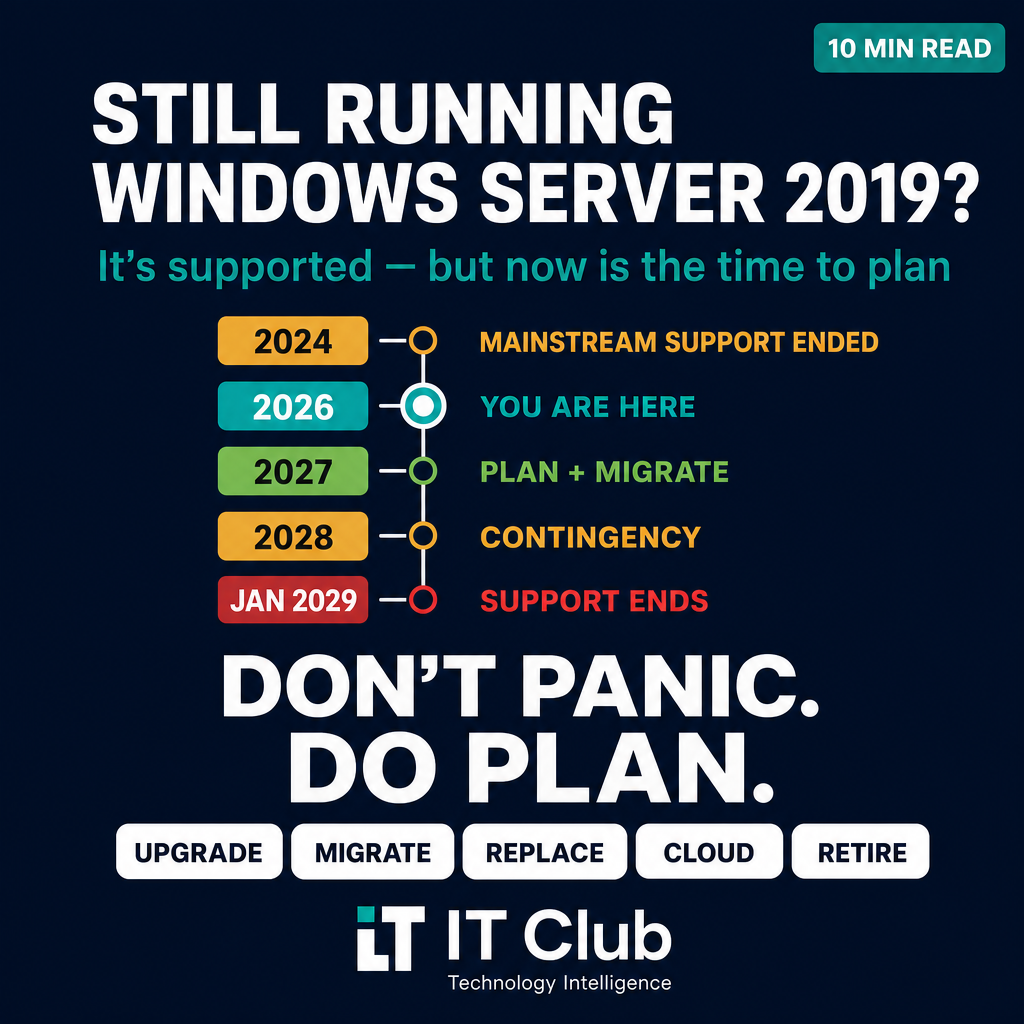
Tap to follow The IT Club Channel on WhatsApp.
Related Articles
Nobody launched them as weather sensors. Now thousands of satellites can help measure the atmosphere
A network built to connect people is also giving researchers another way to estimate what is happening high above Earth. The useful measurement is not quite the one the nickname suggests.
Read articleAI Doesn't Just Need Data Centres. It Needs the Network to Reach You.
AI may run in a data centre, on a device or at the edge, but business value still depends on the network between the user and the system.
Read articleStill Running VMware ESXi? Don't Assume You Should Keep It
VMware ESXi is still widely deployed and still capable — but the licensing landscape, support position and hardware lifecycle have changed enough that continuing without a formal review is no longer a low-risk choice.
Read articleNeed help putting this into practice?
IT Club helps you understand the technology. If you need implementation, support or consultancy, the teams behind IT Club can help.
Altitude IT (opens in a new tab) — IT support, cyber security, Microsoft 365 and technology operations.
Altitude AI (opens in a new tab) — AI discovery, automation, governance and implementation.